Applications
Software and tools that use PostgreSQL can be managed by the docker daemon
PostgreSQL is the most popular database in the world, and countless software is built on PostgreSQL, around PostgreSQL, or serves PostgreSQL itself, such as
- “Application software” that uses PostgreSQL as the preferred database
- “Tooling software” that serves PostgreSQL software development and management
- “Database software” that derives, wraps, forks, modifies, or extends PostgreSQL
And Pigsty just have a series of Docker Compose templates for these software, application and databases:
| Name | Website | Type | State | Port | Domain | Description |
|---|
| Supabase | Supabase | DB | GA | 8000 | supa.pigsty | OSS Firebase Alternative, Backend as Platform |
| PolarDB | PolarDB | DB | GA | 5532 | | OSS RAC for PostgreSQL |
| FerretDB | FerretDB | DB | GA | 27017 | | OSS Mongo Alternative base on PostgreSQL |
| MinIO | MinIO | DB | GA | 9000 | sss.pigsty | OSS AWS S3 Alternative, Simple Storage Service |
| EdgeDB | EdgeDB | DB | TBD | | | OSS Graph Database base on PostgreSQL |
| NocoDB | NocoDB | APP | GA | 8080 | noco.pigsty | OSS Airtable Alternative over PostgreSQL |
| Odoo | Odoo | APP | GA | 8069 | odoo.pigsty | OSS ERP Software base on PostgreSQL |
| Dify | Dify | APP | GA | 8001 | dify.pigsty | OSS AI Workflow Orachestration & LLMOps Platform |
| Jupyter | Jupyter | APP | GA | | lab.pigsty | OSS AI Python Notebook & Data Analysis IDE |
| Gitea | Gitea | APP | GA | 8889 | git.pigsty | OSS DevOps Git Service |
| Wiki | Wiki.js | APP | GA | 9002 | wiki.pigsty | OSS Wiki Software |
| GitLab | GitLab | APP | TBD | | | OSS GitHub Alternative, Code Management Platform |
| Mastodon | Mastodon | APP | TBD | | | OSS Decentralized Social Network |
| Keycloak | Keycloak | APP | TBD | | | OSS Identity & Access Management Component |
| Harbour | Harbour | APP | TBD | | | OSS Docker/K8S Image Repository |
| Confluence | Confluence | APP | TBD | | | Enterprise Knowledge Management System |
| Jira | Jira | APP | TBD | | | Enterprise Project Management Tools |
| Zabbix | Zabbix 7 | APP | TBD | | | OSS Monitoring Platform for Enterprise |
| Grafana | Grafana | APP | TBD | | | Dashboard, Data Visualization & Monitoring Platform |
| Metabase | Metabase | APP | GA | 9004 | mtbs.pigsty | Fast analysis of data from multiple data sources |
| ByteBase | ByteBase | APP | GA | 8887 | ddl.pigsty | Database Migration Tool for PostgreSQL |
| Kong | Kong | TOOL | GA | 8000 | api.pigsty | OSS API Gateway based on Nginx/OpenResty |
| PostgREST | PostgREST | TOOL | GA | 8884 | api.pigsty | Generate RESTAPI from PostgreSQL Schemas |
| pgAdmin4 | pgAdmin4 | TOOL | GA | 8885 | adm.pigsty | PostgreSQL GUI Admin Tools |
| pgWeb | pgWeb | TOOL | GA | 8886 | cli.pigsty | PostgreSQL Web GUI Client |
| SchemaSpy | SchemaSpy | TOOL | TBD | | | Dump & Visualize PostgreSQL Schema |
| pgBadger | pgBadger | TOOL | TBD | | | PostgreSQL Log Analysis |
| pg_exporter | pg_exporter | TOOL | GA | 9630 | | Expose PostgreSQL & Pgbouncer Metrics for Prometheus |
How to prepare Docker?
To run docker compose templates, you need to install the DOCKER module on the node,
If you don’t have the Internet access or having firewall issues, you may need to configure a DockerHub proxy, check the tutorial.
1 - Enterprise Self-Hosted Supabase
Self-host enterprise-grade Supabase with Pigsty, featuring monitoring, high availability, PITR, IaC, and 400+ PostgreSQL extensions.
Supabase is great, but having your own Supabase is even better.
Pigsty can help you deploy enterprise-grade Supabase on your own servers (physical, virtual, or cloud) with a single command — more extensions, better performance, deeper control, and more cost-effective.
Pigsty is one of three self-hosting approaches listed on the Supabase official documentation: Self-hosting: Third-Party Guides
TL;DR
Prepare a Linux server, follow the Pigsty standard installation process with the supabase configuration template:
curl -fsSL https://repo.pigsty.io/get | bash; cd ~/pigsty
./configure -c supabase    # Use supabase config (change credentials in pigsty.yml)
vi pigsty.yml              # Edit domain, passwords, keys...
./deploy.yml               # Install Pigsty
./docker.yml               # Install Docker Compose components
./app.yml                  # Start Supabase stateless components with Docker (may take time)
After installation, access Supa Studio on port 8000 with username supabase and password pigsty.

Table of Contents
What is Supabase?
Supabase is a BaaS (Backend as a Service), an open-source Firebase alternative, and the most popular database + backend solution in the AI Agent era.
Supabase wraps PostgreSQL and provides authentication, messaging, edge functions, object storage, and automatically generates REST and GraphQL APIs based on your database schema.
Supabase aims to provide developers with a one-stop backend solution, reducing the complexity of developing and maintaining backend infrastructure.
It allows developers to skip most backend development work — you only need to understand database design and frontend to ship quickly!
Developers can use vibe coding to create a frontend and database schema to rapidly build complete applications.
Currently, Supabase is the most popular open-source project in the PostgreSQL ecosystem, with over 80,000 GitHub stars.
Supabase also offers a “generous” free tier for small startups — free 500 MB storage, more than enough for storing user tables and analytics data.
Why Self-Host?
If Supabase cloud is so attractive, why self-host?
The most obvious reason is what we discussed in “Is Cloud Database an IQ Tax?”: when your data/compute scale exceeds the cloud computing sweet spot (Supabase: 4C/8G/500MB free storage), costs can explode.
And nowadays, reliable local enterprise NVMe SSDs have three to four orders of magnitude cost advantage over cloud storage, and self-hosting can better leverage this.
Another important reason is functionality — Supabase cloud features are limited. Many powerful PostgreSQL extensions aren’t available in cloud services due to multi-tenant security challenges and licensing.
Despite extensions being PostgreSQL’s core feature, only 64 extensions are available on Supabase cloud.
Self-hosted Supabase with Pigsty provides up to 437 ready-to-use PostgreSQL extensions.
Additionally, self-control and vendor lock-in avoidance are important reasons for self-hosting. Although Supabase aims to provide a vendor-lock-free open-source Google Firebase alternative, self-hosting enterprise-grade Supabase is not trivial.
Supabase includes a series of PostgreSQL extensions they develop and maintain, and plans to replace the native PostgreSQL kernel with OrioleDB (which they acquired). These kernels and extensions are not available in the official PGDG repository.
This is implicit vendor lock-in, preventing users from self-hosting in ways other than the supabase/postgres Docker image. Pigsty provides an open, transparent, and universal solution.
We package all 10 missing Supabase extensions into ready-to-use RPM/DEB packages, ensuring they work on all major Linux distributions:
| Extension | Description |
|---|
pg_graphql | GraphQL support in PostgreSQL (Rust), provided by PIGSTY |
pg_jsonschema | JSON Schema validation (Rust), provided by PIGSTY |
wrappers | Supabase foreign data wrapper bundle (Rust), provided by PIGSTY |
index_advisor | Query index advisor (SQL), provided by PIGSTY |
pg_net | Async non-blocking HTTP/HTTPS requests (C), provided by PIGSTY |
vault | Store encrypted credentials in Vault (C), provided by PIGSTY |
pgjwt | JSON Web Token API implementation (SQL), provided by PIGSTY |
pgsodium | Table data encryption TDE, provided by PIGSTY |
supautils | Security utilities for cloud environments (C), provided by PIGSTY |
pg_plan_filter | Filter queries by execution plan cost (C), provided by PIGSTY |
We also install most extensions by default in Supabase deployments. You can enable them as needed.
Pigsty also handles the underlying highly available PostgreSQL cluster, highly available MinIO object storage cluster, and even Docker deployment, Nginx reverse proxy, domain configuration, and HTTPS certificate issuance. You can spin up any number of stateless Supabase container clusters using Docker Compose and store state in external Pigsty-managed database services.
With this self-hosted architecture, you gain the freedom to use different kernels (PG 15-18, OrioleDB), install 437 extensions, scale Supabase/Postgres/MinIO, freedom from database operations, and freedom from vendor lock-in — running locally forever. Compared to cloud service costs, you only need to prepare servers and run a few commands.
Single-Node Quick Start
Let’s start with single-node Supabase deployment. We’ll cover multi-node high availability later.
Prepare a fresh Linux server, use the Pigsty supabase configuration template for standard installation,
then run docker.yml and app.yml to start stateless Supabase containers (default ports 8000/8433).
curl -fsSL https://repo.pigsty.io/get | bash; cd ~/pigsty
./configure -c supabase    # Use supabase config (change credentials in pigsty.yml)
vi pigsty.yml              # Edit domain, passwords, keys...
./deploy.yml               # Install Pigsty
./docker.yml               # Install Docker Compose components
./app.yml                  # Start Supabase stateless components with Docker
Before deploying Supabase, modify the auto-generated pigsty.yml configuration file (domain and passwords) according to your needs.
For local development/testing, you can skip this and customize later.
If configured correctly, after about ten minutes, you can access the Supabase Studio GUI at http://<your_ip_address>:8000 on your local network.
Default username and password are supabase and pigsty.

Notes:
- In mainland China, Pigsty uses 1Panel and 1ms DockerHub mirrors by default, which may be slow. You can configure your own proxy and registry mirror, then manually pull images with
cd /opt/supabase; docker compose pull. We also offer expert consulting services including complete offline installation packages. - If you need object storage functionality, you must access Supabase via domain and HTTPS, otherwise errors will occur.
- For serious production deployments, always change all default passwords!
Key Technical Decisions
Here are some key technical decisions for self-hosting Supabase:
Single-node deployment doesn’t provide PostgreSQL/MinIO high availability.
However, single-node deployment still has significant advantages over the official pure Docker Compose approach: out-of-the-box monitoring, freedom to install extensions, component scaling capabilities, and point-in-time recovery as a safety net.
If you only have one server or choose to self-host on cloud servers, Pigsty recommends using external S3 instead of local MinIO for object storage to hold PostgreSQL backups and Supabase Storage.
This deployment provides a minimum safety net RTO (hour-level recovery time) / RPO (MB-level data loss) disaster recovery in single-node conditions.
For serious production deployments, Pigsty recommends at least 3-4 nodes, ensuring both MinIO and PostgreSQL use enterprise-grade multi-node high availability deployments. You’ll need more nodes and disks, adjusting cluster configuration in pigsty.yml and Supabase cluster configuration to use high availability endpoints.
Some Supabase features require sending emails, so SMTP service is needed. Unless purely for internal use, production deployments should use SMTP cloud services. Self-hosted mail servers’ emails are often marked as spam.
If your service is directly exposed to the public internet, we strongly recommend using real domain names and HTTPS certificates via Nginx Portal.
Next, we’ll discuss advanced topics for improving Supabase security, availability, and performance beyond single-node deployment.
Advanced: Security Hardening
Pigsty Components
For serious production deployments, we strongly recommend changing Pigsty component passwords. These defaults are public and well-known — going to production without changing passwords is like running naked:
These are Pigsty component passwords. Strongly recommended to set before installation.
Supabase Keys
Besides Pigsty component passwords, you need to change Supabase keys, including:
Please follow the Supabase tutorial: Securing your services:
- Generate a
JWT_SECRET with at least 40 characters, then use the tutorial tools to issue ANON_KEY and SERVICE_ROLE_KEY JWTs. - Use the tutorial tools to generate an
ANON_KEY JWT based on JWT_SECRET and expiration time — this is the anonymous user credential. - Use the tutorial tools to generate a
SERVICE_ROLE_KEY — this is the higher-privilege service role credential. - Specify a random string of at least 32 characters for
PG_META_CRYPTO_KEY to encrypt Studio UI and meta service interactions. - If using different PostgreSQL business user passwords, modify
POSTGRES_PASSWORD accordingly. - If your object storage uses different passwords, modify
S3_ACCESS_KEY and S3_SECRET_KEY accordingly.
After modifying Supabase credentials, restart Docker Compose to apply:
./app.yml -t app_config,app_launch   # Using playbook
cd /opt/supabase; make up            # Manual execution
Advanced: Domain Configuration
If using Supabase locally or on LAN, you can directly connect to Kong’s HTTP port 8000 via IP:Port.
You can use an internal static-resolved domain, but for serious production deployments, we recommend using a real domain + HTTPS to access Supabase.
In this case, your server should have a public IP, you should own a domain, use cloud/DNS/CDN provider’s DNS resolution to point to the node’s public IP (optional fallback: local /etc/hosts static resolution).
The simple approach is to batch-replace the placeholder domain (supa.pigsty) with your actual domain, e.g., supa.pigsty.cc:
sed -ie 's/supa.pigsty/supa.pigsty.cc/g' ~/pigsty/pigsty.yml
If not configured beforehand, reload Nginx and Supabase configuration:
make nginx      # Reload nginx configuration
make cert       # Request certbot free HTTPS certificate
./app.yml       # Reload Supabase configuration
The modified configuration should look like:
all:
  vars:
    infra_portal:
      supa:
        domain: supa.pigsty.cc        # Replace with your domain!
        endpoint: "10.10.10.10:8000"
        websocket: true
        certbot: supa.pigsty.cc       # Certificate name, usually same as domain

  children:
    supabase:
      vars:
        apps:
          supabase:                                         # Supabase app definition
            conf:                                           # Override /opt/supabase/.env
              SITE_URL: https://supa.pigsty.cc              # <------- Change to your external domain name
              API_EXTERNAL_URL: https://supa.pigsty.cc      # <------- Otherwise the storage API may not work!
              SUPABASE_PUBLIC_URL: https://supa.pigsty.cc   # <------- Don't forget to set this in infra_portal!
For complete domain/HTTPS configuration, see Certificate Management. You can also use Pigsty’s built-in local static resolution and self-signed HTTPS certificates as fallback.
Advanced: External Object Storage
You can use S3 or S3-compatible services for PostgreSQL backups and Supabase object storage. Here we use Alibaba Cloud OSS as an example.
Pigsty provides a terraform/spec/aliyun-meta-s3.tf template for provisioning a server and OSS bucket on Alibaba Cloud.
First, modify the S3 configuration in all.children.supa.vars.apps.[supabase].conf to point to Alibaba Cloud OSS:
# if using s3/minio as file storage
S3_BUCKET: data                       # Replace with S3-compatible service info
S3_ENDPOINT: https://sss.pigsty:9000  # Replace with S3-compatible service info
S3_ACCESS_KEY: s3user_data            # Replace with S3-compatible service info
S3_SECRET_KEY: S3User.Data            # Replace with S3-compatible service info
S3_FORCE_PATH_STYLE: true             # Replace with S3-compatible service info
S3_REGION: stub                       # Replace with S3-compatible service info
S3_PROTOCOL: https                    # Replace with S3-compatible service info
Reload Supabase configuration:
./app.yml -t app_config,app_launch
You can also use S3 as PostgreSQL backup repository. Add an aliyun backup repository definition in all.vars.pgbackrest_repo:
all:
  vars:
    pgbackrest_method: aliyun          # pgbackrest backup method: local,minio,[user-defined repos...]
    pgbackrest_repo:                   # pgbackrest backup repo: https://pgbackrest.org/configuration.html#section-repository
      aliyun:                          # Define new backup repo 'aliyun'
        type: s3                       # Alibaba Cloud OSS is S3-compatible
        s3_endpoint: oss-cn-beijing-internal.aliyuncs.com
        s3_region: oss-cn-beijing
        s3_bucket: pigsty-oss
        s3_key: xxxxxxxxxxxxxx
        s3_key_secret: xxxxxxxx
        s3_uri_style: host
        path: /pgbackrest
        bundle: y                         # bundle small files into a single file
        bundle_limit: 20MiB               # Limit for file bundles, 20MiB for object storage
        bundle_size: 128MiB               # Target size for file bundles, 128MiB for object storage
        cipher_type: aes-256-cbc          # enable AES encryption for remote backup repo
        cipher_pass: pgBackRest.MyPass    # Set encryption password for pgBackRest backup repo
        retention_full_type: time         # retention full backup by time on minio repo
        retention_full: 14                # keep full backup for the last 14 days
Then specify aliyun backup repository in all.vars.pgbackrest_method and reset pgBackrest:
./pgsql.yml -t pgbackrest
Pigsty will switch the backup repository to external object storage. For more backup configuration, see PostgreSQL Backup.
Advanced: Using SMTP
You can use SMTP for sending emails. Modify the supabase app configuration with SMTP information:
all:
  children:
    supabase:        # supa group
      vars:          # supa group vars
        apps:        # supa group app list
          supabase:  # the supabase app
            conf:    # the supabase app conf entries
              SMTP_HOST: smtpdm.aliyun.com:80
              SMTP_PORT: 80
              SMTP_USER: no_reply@mail.your.domain.com
              SMTP_PASS: your_email_user_password
              SMTP_SENDER_NAME: MySupabase
              SMTP_ADMIN_EMAIL: adminxxx@mail.your.domain.com
              ENABLE_ANONYMOUS_USERS: false
Don’t forget to reload configuration with app.yml.
Advanced: True High Availability
After these configurations, you have enterprise-grade Supabase with public domain, HTTPS certificate, SMTP, PITR backup, monitoring, IaC, and 400+ extensions (basic single-node version).
For high availability configuration, see other Pigsty documentation. We offer expert consulting services for hands-on Supabase self-hosting — $400 USD to save you the hassle.
Single-node RTO/RPO relies on external object storage as a safety net. If your node fails, backups in external S3 storage let you redeploy Supabase on a new node and restore from backup.
This provides minimum safety net RTO (hour-level recovery) / RPO (MB-level data loss) disaster recovery.
For RTO < 30s with zero data loss on failover, use multi-node high availability deployment:
- ETCD: DCS needs three or more nodes to tolerate one node failure.
- PGSQL: PostgreSQL synchronous commit (no data loss) mode recommends at least three nodes.
- INFRA: Monitoring infrastructure failure has less impact; production recommends dual replicas.
- Supabase stateless containers can also be multi-node replicas for high availability.
In this case, you also need to modify PostgreSQL and MinIO endpoints to use DNS / L2 VIP / HAProxy high availability endpoints.
For these parts, follow the documentation for each Pigsty module.
Reference conf/ha/trio.yml and conf/ha/safe.yml for upgrading to three or more nodes.
2 - Odoo: Self-Hosted Open Source ERP
How to spin up an out-of-the-box enterprise application suite Odoo and use Pigsty to manage its backend PostgreSQL database.
Odoo is an open-source enterprise resource planning (ERP) software that provides a full suite of business applications, including CRM, sales, purchasing, inventory, production, accounting, and other management functions. Odoo is a typical web application that uses PostgreSQL as its underlying database.
All your business on one platform — Simple, efficient, yet affordable
Public Demo (may not always be available): http://odoo.pigsty.io, username: test@pigsty.io, password: pigsty
Quick Start
On a fresh Linux x86/ARM server running a compatible operating system:
curl -fsSL https://repo.pigsty.io/get | bash; cd ~/pigsty
./bootstrap                # Install Ansible
./configure -c app/odoo    # Use Odoo configuration (change credentials in pigsty.yml)
./deploy.yml               # Install Pigsty
./docker.yml               # Install Docker Compose
./app.yml                  # Start Odoo stateless components with Docker
Odoo listens on port 8069 by default. Access http://<ip>:8069 in your browser. The default username and password are both admin.
You can add a DNS resolution record odoo.pigsty pointing to your server in the browser host’s /etc/hosts file, allowing you to access the Odoo web interface via http://odoo.pigsty.
If you want to access Odoo via SSL/HTTPS, you need to use a real SSL certificate or trust the self-signed CA certificate automatically generated by Pigsty. (In Chrome, you can also type thisisunsafe to bypass certificate verification)
Configuration Template
conf/app/odoo.yml defines a template configuration file containing the resources required for a single Odoo instance.
all:
  children:

    # Odoo application (default username and password: admin/admin)
    odoo:
      hosts: { 10.10.10.10: {} }
      vars:
        app: odoo   # Specify app name to install (in apps)
        apps:       # Define all applications
          odoo:     # App name, should have corresponding ~/pigsty/app/odoo folder
            file:   # Optional directories to create
              - { path: /data/odoo         ,state: directory, owner: 100, group: 101 }
              - { path: /data/odoo/webdata ,state: directory, owner: 100, group: 101 }
              - { path: /data/odoo/addons  ,state: directory, owner: 100, group: 101 }
            conf:   # Override /opt/<app>/.env config file
              PG_HOST: 10.10.10.10            # PostgreSQL host
              PG_PORT: 5432                   # PostgreSQL port
              PG_USERNAME: odoo               # PostgreSQL user
              PG_PASSWORD: DBUser.Odoo        # PostgreSQL password
              ODOO_PORT: 8069                 # Odoo app port
              ODOO_DATA: /data/odoo/webdata   # Odoo webdata
              ODOO_ADDONS: /data/odoo/addons  # Odoo plugins
              ODOO_DBNAME: odoo               # Odoo database name
              ODOO_VERSION: 19.0              # Odoo image version

    # Odoo database
    pg-odoo:
      hosts: { 10.10.10.10: { pg_seq: 1, pg_role: primary } }
      vars:
        pg_cluster: pg-odoo
        pg_users:
          - { name: odoo    ,password: DBUser.Odoo ,pgbouncer: true ,roles: [ dbrole_admin ] ,createdb: true ,comment: admin user for odoo service }
          - { name: odoo_ro ,password: DBUser.Odoo ,pgbouncer: true ,roles: [ dbrole_readonly ]  ,comment: read only user for odoo service  }
          - { name: odoo_rw ,password: DBUser.Odoo ,pgbouncer: true ,roles: [ dbrole_readwrite ] ,comment: read write user for odoo service }
        pg_databases:
          - { name: odoo ,owner: odoo ,revokeconn: true ,comment: odoo main database  }
        pg_hba_rules:
          - { user: all ,db: all ,addr: 172.17.0.0/16  ,auth: pwd ,title: 'allow access from local docker network' }
          - { user: dbuser_view , db: all ,addr: infra ,auth: pwd ,title: 'allow grafana dashboard access cmdb from infra nodes' }
        node_crontab: [ '00 01 * * * postgres /pg/bin/pg-backup full' ] # Full backup daily at 1am

    infra: { hosts: { 10.10.10.10: { infra_seq: 1 } } }
    etcd:  { hosts: { 10.10.10.10: { etcd_seq: 1 } }, vars: { etcd_cluster: etcd } }
    #minio: { hosts: { 10.10.10.10: { minio_seq: 1 } }, vars: { minio_cluster: minio } }

  vars:                               # Global variables
    version: v4.0.0                   # Pigsty version string
    admin_ip: 10.10.10.10             # Admin node IP address
    region: default                   # Upstream mirror region: default|china|europe
    node_tune: oltp                   # Node tuning specs: oltp,olap,tiny,crit
    pg_conf: oltp.yml                 # PGSQL tuning specs: {oltp,olap,tiny,crit}.yml

    docker_enabled: true              # Enable docker on app group
    #docker_registry_mirrors: ["https://docker.1panel.live","https://docker.1ms.run","https://docker.xuanyuan.me","https://registry-1.docker.io"]

    proxy_env:                        # Global proxy env for downloading packages & pulling docker images
      no_proxy: "localhost,127.0.0.1,10.0.0.0/8,192.168.0.0/16,*.pigsty,*.aliyun.com,mirrors.*,*.tsinghua.edu.cn"
      #http_proxy:  127.0.0.1:12345   # Add proxy env here for downloading packages or pulling images
      #https_proxy: 127.0.0.1:12345   # Usually format is http://user:pass@proxy.xxx.com
      #all_proxy:   127.0.0.1:12345

    infra_portal:                      # Domain names and upstream servers
      home  : { domain: i.pigsty }
      minio : { domain: m.pigsty ,endpoint: "${admin_ip}:9001" ,scheme: https ,websocket: true }
      odoo:                            # Nginx server config for odoo
        domain: odoo.pigsty            # REPLACE WITH YOUR OWN DOMAIN!
        endpoint: "10.10.10.10:8069"   # Odoo service endpoint: IP:PORT
        websocket: true                # Add websocket support
        certbot: odoo.pigsty           # Certbot cert name, apply with `make cert`

    repo_enabled: false
    node_repo_modules: node,infra,pgsql
    pg_version: 18

    #----------------------------------#
    # Credentials: MUST CHANGE THESE!
    #----------------------------------#
    grafana_admin_password: pigsty
    grafana_view_password: DBUser.Viewer
    pg_admin_password: DBUser.DBA
    pg_monitor_password: DBUser.Monitor
    pg_replication_password: DBUser.Replicator
    patroni_password: Patroni.API
    haproxy_admin_password: pigsty
    minio_secret_key: S3User.MinIO
    etcd_root_password: Etcd.Root
Basics
Check the configurable environment variables in the .env file:
# https://hub.docker.com/_/odoo#
PG_HOST=10.10.10.10
PG_PORT=5432
PG_USER=dbuser_odoo
PG_PASS=DBUser.Odoo
ODOO_PORT=8069
Then start Odoo with:
make up # docker compose up
Access http://odoo.pigsty or http://10.10.10.10:8069
Makefile
make up         # Start Odoo with docker compose in minimal mode
make run        # Start Odoo with docker, local data directory and external PostgreSQL
make view       # Print Odoo access endpoints
make log        # tail -f Odoo logs
make info       # Inspect Odoo with jq
make stop       # Stop Odoo container
make clean      # Remove Odoo container
make pull       # Pull latest Odoo image
make rmi        # Remove Odoo image
make save       # Save Odoo image to /tmp/docker/odoo.tgz
make load       # Load Odoo image from /tmp/docker/odoo.tgz
Using External PostgreSQL
You can use external PostgreSQL for Odoo. Odoo will create its own database during setup, so you don’t need to do that.
pg_users: [ { name: dbuser_odoo ,password: DBUser.Odoo ,pgbouncer: true ,roles: [ dbrole_admin ]    ,comment: admin user for odoo database } ]
pg_databases: [ { name: odoo ,owner: dbuser_odoo ,revokeconn: true ,comment: odoo primary database } ]
Create the business user and database with:
bin/pgsql-user  pg-meta  dbuser_odoo
#bin/pgsql-db    pg-meta  odoo     # Odoo will create the database during setup
Check connectivity:
psql postgres://dbuser_odoo:DBUser.Odoo@10.10.10.10:5432/odoo
Expose Odoo Service
Expose the Odoo web service via Nginx portal:
    infra_portal:                     # Domain names and upstream servers
      home         : { domain: h.pigsty }
      grafana      : { domain: g.pigsty    ,endpoint: "${admin_ip}:3000" , websocket: true }
      prometheus   : { domain: p.pigsty    ,endpoint: "${admin_ip}:9058" }
      alertmanager : { domain: a.pigsty    ,endpoint: "${admin_ip}:9059" }
      blackbox     : { endpoint: "${admin_ip}:9115" }
      loki         : { endpoint: "${admin_ip}:3100" }
      odoo         : { domain: odoo.pigsty, endpoint: "127.0.0.1:8069", websocket: true }  # <------ Add this line
./infra.yml -t nginx   # Setup nginx infra portal
Odoo Addons
There are many Odoo modules available in the community. You can install them by downloading and placing them in the addons folder.
volumes:
  - ./addons:/mnt/extra-addons
You can mount the ./addons directory to /mnt/extra-addons in the container, then download and extract addons to the addons folder.
To enable addon modules, first enter Developer mode:
Settings -> General Settings -> Developer Tools -> Activate the developer mode
Then go to Apps -> Update Apps List, and you’ll find the extra addons available to install from the panel.
Frequently used free addons: Accounting Kit
Demo
Check the public demo: http://odoo.pigsty.io, username: test@pigsty.io, password: pigsty
If you want to access Odoo via SSL, you must trust files/pki/ca/ca.crt in your browser (or use the dirty hack thisisunsafe in Chrome).
3 - Dify: AI Workflow Platform
How to self-host the AI Workflow LLMOps platform — Dify, using external PostgreSQL, PGVector, and Redis for storage with Pigsty?
Dify is a Generative AI Application Innovation Engine and open-source LLM application development platform. It provides capabilities from Agent building to AI workflow orchestration, RAG retrieval, and model management, helping users easily build and operate generative AI native applications.
Pigsty provides support for self-hosted Dify, allowing you to deploy Dify with a single command while storing critical state in externally managed PostgreSQL. You can use pgvector as a vector database in the same PostgreSQL instance, further simplifying deployment.
Current Pigsty v4.0 supported Dify version: v1.8.1
Quick Start
On a fresh Linux x86/ARM server running a compatible operating system:
curl -fsSL https://repo.pigsty.io/get | bash; cd ~/pigsty
./bootstrap                # Install Pigsty dependencies
./configure -c app/dify    # Use Dify configuration template
vi pigsty.yml              # Edit passwords, domains, keys, etc.

./deploy.yml               # Install Pigsty
./docker.yml               # Install Docker and Compose
./app.yml                  # Install Dify
Dify listens on port 5001 by default. Access http://<ip>:5001 in your browser and set up your initial user credentials to log in.
Once Dify starts, you can install various extensions, configure system models, and start using it!
Why Self-Host
There are many reasons to self-host Dify, but the primary motivation is data security. The Docker Compose template provided by Dify uses basic default database images, lacking enterprise features like high availability, disaster recovery, monitoring, IaC, and PITR capabilities.
Pigsty elegantly solves these issues for Dify, deploying all components with a single command based on configuration files and using mirrors to address China region access challenges. This makes Dify deployment and delivery very smooth. It handles PostgreSQL primary database, PGVector vector database, MinIO object storage, Redis, Prometheus monitoring, Grafana visualization, Nginx reverse proxy, and free HTTPS certificates all at once.
Pigsty ensures all Dify state is stored in externally managed services, including metadata in PostgreSQL and other data in the file system. Dify instances launched via Docker Compose become stateless applications that can be destroyed and rebuilt at any time, greatly simplifying operations.
Installation
Let’s start with single-node Dify deployment. We’ll cover production high-availability deployment methods later.
First, use Pigsty’s standard installation process to install the PostgreSQL instance required by Dify:
curl -fsSL https://repo.pigsty.io/get | bash; cd ~/pigsty
./bootstrap               # Prepare Pigsty dependencies
./configure -c app/dify   # Use Dify application template
vi pigsty.yml             # Edit configuration file, modify domains and passwords
./deploy.yml              # Install Pigsty and various databases
When you use the ./configure -c app/dify command, Pigsty automatically generates a configuration file based on the conf/app/dify.yml template and your current environment.
You should modify passwords, domains, and other relevant parameters in the generated pigsty.yml configuration file according to your needs, then run ./deploy.yml to execute the standard installation process.
Next, run docker.yml to install Docker and Docker Compose, then use app.yml to complete Dify deployment:
./docker.yml              # Install Docker and Docker Compose
./app.yml                 # Deploy Dify stateless components with Docker
You can access the Dify Web admin interface at http://<your_ip_address>:5001 on your local network.
The first login will prompt you to set up default username, email, and password.
You can also use the locally resolved placeholder domain dify.pigsty, or follow the configuration below to use a real domain with an HTTPS certificate.
Configuration
When you use the ./configure -c app/dify command for configuration, Pigsty automatically generates a configuration file based on the conf/app/dify.yml template and your current environment. Here’s a detailed explanation of the default configuration:
all:
  children:

    # Dify application
    dify:
      hosts: { 10.10.10.10: {} }
      vars:
        app: dify   # Specify app name to install (in apps)
        apps:       # Define all applications
          dify:     # App name, should have corresponding ~/pigsty/app/dify folder
            file:   # Data directories to create
              - { path: /data/dify ,state: directory ,mode: 0755 }
            conf:   # Override /opt/dify/.env config file

              # Change domain, mirror, proxy, secret key
              NGINX_SERVER_NAME: dify.pigsty
              # Secret key for signing and encryption, generate with `openssl rand -base64 42` (MUST CHANGE!)
              SECRET_KEY: sk-9f73s3ljTXVcMT3Blb3ljTqtsKiGHXVcMT3BlbkFJLK7U
              # Expose DIFY nginx service on port 5001 by default
              DIFY_PORT: 5001
              # Dify file storage location, default is ./volume, we'll use another volume created above
              DIFY_DATA: /data/dify

              # Proxy and mirror settings
              #PIP_MIRROR_URL: https://pypi.tuna.tsinghua.edu.cn/simple
              #SANDBOX_HTTP_PROXY: http://10.10.10.10:12345
              #SANDBOX_HTTPS_PROXY: http://10.10.10.10:12345

              # Database credentials
              DB_USERNAME: dify
              DB_PASSWORD: difyai123456
              DB_HOST: 10.10.10.10
              DB_PORT: 5432
              DB_DATABASE: dify
              VECTOR_STORE: pgvector
              PGVECTOR_HOST: 10.10.10.10
              PGVECTOR_PORT: 5432
              PGVECTOR_USER: dify
              PGVECTOR_PASSWORD: difyai123456
              PGVECTOR_DATABASE: dify
              PGVECTOR_MIN_CONNECTION: 2
              PGVECTOR_MAX_CONNECTION: 10

    pg-meta:
      hosts: { 10.10.10.10: { pg_seq: 1, pg_role: primary } }
      vars:
        pg_cluster: pg-meta
        pg_users:
          - { name: dify ,password: difyai123456 ,pgbouncer: true ,roles: [ dbrole_admin ] ,superuser: true ,comment: dify superuser }
        pg_databases:
          - { name: dify        ,owner: dify ,revokeconn: true ,comment: dify main database  }
          - { name: dify_plugin ,owner: dify ,revokeconn: true ,comment: dify plugin_daemon database }
        pg_hba_rules:
          - { user: dify ,db: all ,addr: 172.17.0.0/16  ,auth: pwd ,title: 'allow dify access from local docker network' }
        node_crontab: [ '00 01 * * * postgres /pg/bin/pg-backup full' ] # Full backup daily at 1am

    infra: { hosts: { 10.10.10.10: { infra_seq: 1 } } }
    etcd:  { hosts: { 10.10.10.10: { etcd_seq: 1 } }, vars: { etcd_cluster: etcd } }
    #minio: { hosts: { 10.10.10.10: { minio_seq: 1 } }, vars: { minio_cluster: minio } }

  vars:                               # Global variables
    version: v4.0.0                   # Pigsty version string
    admin_ip: 10.10.10.10             # Admin node IP address
    region: default                   # Upstream mirror region: default|china|europe
    node_tune: oltp                   # Node tuning specs: oltp,olap,tiny,crit
    pg_conf: oltp.yml                 # PGSQL tuning specs: {oltp,olap,tiny,crit}.yml

    docker_enabled: true              # Enable docker on app group
    #docker_registry_mirrors: ["https://docker.1panel.live","https://docker.1ms.run","https://docker.xuanyuan.me","https://registry-1.docker.io"]

    proxy_env:                        # Global proxy env for downloading packages & pulling docker images
      no_proxy: "localhost,127.0.0.1,10.0.0.0/8,192.168.0.0/16,*.pigsty,*.aliyun.com,mirrors.*,*.tsinghua.edu.cn"
      #http_proxy:  127.0.0.1:12345   # Add proxy env here for downloading packages or pulling images
      #https_proxy: 127.0.0.1:12345   # Usually format is http://user:pass@proxy.xxx.com
      #all_proxy:   127.0.0.1:12345

    infra_portal:                      # Domain names and upstream servers
      home  : { domain: i.pigsty }
      #minio : { domain: m.pigsty ,endpoint: "${admin_ip}:9001" ,scheme: https ,websocket: true }
      dify:                            # Nginx server config for dify
        domain: dify.pigsty            # REPLACE WITH YOUR OWN DOMAIN!
        endpoint: "10.10.10.10:5001"   # Dify service endpoint: IP:PORT
        websocket: true                # Add websocket support
        certbot: dify.pigsty           # Certbot cert name, apply with `make cert`

    repo_enabled: false
    node_repo_modules: node,infra,pgsql
    pg_version: 18

    #----------------------------------#
    # Credentials: MUST CHANGE THESE!
    #----------------------------------#
    grafana_admin_password: pigsty
    grafana_view_password: DBUser.Viewer
    pg_admin_password: DBUser.DBA
    pg_monitor_password: DBUser.Monitor
    pg_replication_password: DBUser.Replicator
    patroni_password: Patroni.API
    haproxy_admin_password: pigsty
    minio_secret_key: S3User.MinIO
    etcd_root_password: Etcd.Root
Checklist
Here’s a checklist of configuration items you need to pay attention to:
- Hardware/Software: Prepare required machine resources: Linux
x86_64/arm64 server, fresh installation of a mainstream Linux OS - Network/Permissions: SSH passwordless login access, user with sudo privileges without password
- Ensure the machine has a static IPv4 network address on the internal network and can access the internet
- If accessing via public network, ensure you have a domain pointing to the node’s public IP address
- Ensure you use the
app/dify configuration template and modify parameters as neededconfigure -c app/dify, enter the node’s internal primary IP address, or specify via -i <primary_ip> command line parameter
- Have you changed all password-related configuration parameters? [Optional]
- Have you changed the PostgreSQL cluster business user password and application configurations using these passwords?
- Default username
dify and password difyai123456 are generated by Pigsty for Dify; modify according to your needs - In the Dify configuration block, modify
DB_USERNAME, DB_PASSWORD, PGVECTOR_USER, PGVECTOR_PASSWORD accordingly
- Have you changed Dify’s default encryption key?
- You can randomly generate a password string with
openssl rand -base64 42 and fill in the SECRET_KEY parameter
- Have you changed the domain used by Dify?
- Replace placeholder domain
dify.pigsty with your actual domain, e.g., dify.pigsty.cc - You can use
sed -ie 's/dify.pigsty/dify.pigsty.cc/g' pigsty.yml to modify Dify’s domain
Domain and SSL
If you want to use a real domain with an HTTPS certificate, you need to modify the pigsty.yml configuration file:
- The
dify domain in the infra_portal parameter - It’s best to specify an email address
certbot_email for certificate expiration notifications - Configure Dify’s
NGINX_SERVER_NAME parameter to specify your actual domain
all:
  children:                            # Cluster definitions
    dify:                              # Dify group
      vars:                            # Dify group variables
        apps:                          # Application configuration
          dify:                        # Dify application definition
            conf:                      # Dify application configuration
              NGINX_SERVER_NAME: dify.pigsty

  vars:                                # Global parameters
    #certbot_sign: true                # Use Certbot for free HTTPS certificate
    certbot_email: your@email.com      # Email for certificate requests, for expiration notifications, optional
    infra_portal:                      # Configure Nginx servers
      dify:                            # Dify server definition
        domain: dify.pigsty            # Replace with your own domain here!
        endpoint: "10.10.10.10:5001"   # Specify Dify's IP and port here (auto-configured by default)
        websocket: true                # Dify requires websocket enabled
        certbot: dify.pigsty           # Specify Certbot certificate name
Use the following commands to request Nginx certificates:
# Request certificate, can also manually run /etc/nginx/sign-cert script
make cert

# The above Makefile shortcut actually runs the following playbook task:
./infra.yml -t nginx_certbot,nginx_reload -e certbot_sign=true
Run the app.yml playbook to redeploy Dify service for the NGINX_SERVER_NAME configuration to take effect:
File Backup
You can use restic to backup Dify’s file storage (default location /data/dify):
export RESTIC_REPOSITORY=/data/backups/dify   # Specify dify backup directory
export RESTIC_PASSWORD=some-strong-password   # Specify backup encryption password
mkdir -p ${RESTIC_REPOSITORY}                 # Create dify backup directory
restic init
After creating the Restic backup repository, you can backup Dify with:
export RESTIC_REPOSITORY=/data/backups/dify   # Specify dify backup directory
export RESTIC_PASSWORD=some-strong-password   # Specify backup encryption password

restic backup /data/dify                      # Backup /dify data directory to repository
restic snapshots                              # View backup snapshot list
restic restore -t /data/dify 0b11f778         # Restore snapshot xxxxxx to /data/dify
restic check                                  # Periodically check repository integrity
Another more reliable method is using JuiceFS to mount MinIO object storage to the /data/dify directory, allowing you to use MinIO/S3 for file state storage.
If you want to store all data in PostgreSQL, consider “storing file system data in PostgreSQL using JuiceFS”.
For example, you can create another dify_fs database and use it as JuiceFS metadata storage:
METAURL=postgres://dify:difyai123456@:5432/dify_fs
OPTIONS=(
  --storage postgres
  --bucket :5432/dify_fs
  --access-key dify
  --secret-key difyai123456
  ${METAURL}
  jfs
)
juicefs format "${OPTIONS[@]}"         # Create PG file system
juicefs mount ${METAURL} /data/dify -d # Mount to /data/dify directory in background
juicefs bench /data/dify               # Test performance
juicefs umount /data/dify              # Unmount
Reference
Dify Self-Hosting FAQ
4 - Enterprise Software
Enterprise-grade open source software templates
5 - NocoDB: Open-Source Airtable
Use NocoDB to transform PostgreSQL databases into smart spreadsheets, a no-code database application platform.
NocoDB is an open-source Airtable alternative that turns any database into a smart spreadsheet.
It provides a rich user interface that allows you to create powerful database applications without writing code. NocoDB supports PostgreSQL, MySQL, SQL Server, and more, making it ideal for building internal tools and data management systems.
Quick Start
Pigsty provides a Docker Compose configuration file for NocoDB in the software template directory:
Review and modify the .env configuration file (adjust database connections as needed).
Start the service:
make up # Start NocoDB with Docker Compose
Access NocoDB:
- Default URL: http://nocodb.pigsty
- Alternate URL: http://10.10.10.10:8080
- First-time access requires creating an administrator account
Management Commands
Pigsty provides convenient Makefile commands to manage NocoDB:
make up      # Start NocoDB service
make run     # Start with Docker (connect to external PostgreSQL)
make view    # Display NocoDB access URL
make log     # View container logs
make info    # View service details
make stop    # Stop the service
make clean   # Stop and remove containers
make pull    # Pull the latest image
make rmi     # Remove NocoDB image
make save    # Save image to /tmp/nocodb.tgz
make load    # Load image from /tmp/nocodb.tgz
Connect to PostgreSQL
NocoDB can connect to PostgreSQL databases managed by Pigsty.
When adding a new project in the NocoDB interface, select “External Database” and enter the PostgreSQL connection information:
Host: 10.10.10.10
Port: 5432
Database Name: your_database
Username: your_username
Password: your_password
SSL: Disabled (or enable as needed)
After successful connection, NocoDB will automatically read the database table structure, and you can manage data through the visual interface.
Features
- Smart Spreadsheet Interface: Excel/Airtable-like user experience
- Multiple Views: Grid, form, kanban, calendar, gallery views
- Collaboration Features: Team collaboration, permission management, comments
- API Support: Auto-generated REST API
- Integration Capabilities: Webhooks, Zapier integrations
- Import/Export: CSV, Excel format support
- Formulas and Validation: Complex data calculations and validation rules
Configuration
NocoDB configuration is in the .env file:
# Database connection (NocoDB metadata storage)
NC_DB=pg://postgres:DBUser.Postgres@10.10.10.10:5432/nocodb

# JWT secret (recommended to change)
NC_AUTH_JWT_SECRET=your-secret-key

# Other settings
NC_PUBLIC_URL=http://nocodb.pigsty
NC_DISABLE_TELE=true
Data Persistence
NocoDB metadata is stored by default in an external PostgreSQL database, and application data can also be stored in PostgreSQL.
If using local storage, data is saved in the /data/nocodb directory.
Security Recommendations
- Change Default Secret: Modify
NC_AUTH_JWT_SECRET in the .env file - Use Strong Passwords: Set strong passwords for administrator accounts
- Configure HTTPS: Enable HTTPS for production environments
- Restrict Access: Limit access through firewall or Nginx
- Regular Backups: Regularly back up the NocoDB metadata database
6 - Teable: AI No-Code Database
Build AI-powered no-code database applications with Teable to boost team productivity.
Teable is an AI-powered no-code database platform designed for team collaboration and automation.
Teable perfectly combines the power of databases with the ease of spreadsheets, integrating AI capabilities to help teams efficiently generate, automate, and collaborate on data.
Quick Start
Teable requires a complete Pigsty environment (including PostgreSQL, Redis, MinIO).
Prepare Environment
cd ~/pigsty
./bootstrap                # Prepare local repo and Ansible
./configure -c app/teable  # Important: modify default credentials!
./deploy.yml               # Install Pigsty, PostgreSQL, MinIO
./redis.yml                # Install Redis instance
./docker.yml               # Install Docker and Docker Compose
./app.yml                  # Install Teable with Docker Compose
Access Service
- Default URL: http://teable.pigsty
- Alternate URL: http://10.10.10.10:3000
- First-time access requires registering an administrator account
Management Commands
Manage Teable in the Pigsty software template directory:
cd ~/pigsty/app/teable

make up      # Start Teable service
make down    # Stop Teable service
make log     # View container logs
make clean   # Clean up containers and data
Architecture
Teable depends on the following components:
- PostgreSQL: Stores application data and metadata
- Redis: Caching and session management
- MinIO: Object storage (files, images, etc.)
- Docker: Container runtime environment
Ensure these services are properly installed before deploying Teable.
Features
- AI Integration: Built-in AI assistant for auto-generating data, formulas, and workflows
- Smart Tables: Powerful table functionality with multiple field types
- Automated Workflows: No-code automation to boost team efficiency
- Multiple Views: Grid, form, kanban, calendar, and more
- Team Collaboration: Real-time collaboration, permission management, comments
- API and Integrations: Auto-generated API with Webhook support
- Template Library: Rich application templates for quick project starts
Configuration
Teable configuration is managed through environment variables in docker-compose.yml:
# PostgreSQL connection
POSTGRES_HOST=10.10.10.10
POSTGRES_PORT=5432
POSTGRES_DB=teable
POSTGRES_USER=dbuser_teable
POSTGRES_PASSWORD=DBUser.Teable

# Redis connection
REDIS_HOST=10.10.10.10
REDIS_PORT=6379
REDIS_DB=0

# MinIO connection
MINIO_ENDPOINT=http://10.10.10.10:9000
MINIO_ACCESS_KEY=minioadmin
MINIO_SECRET_KEY=minioadmin

# Application configuration
BACKEND_URL=http://teable.pigsty
PUBLIC_ORIGIN=http://teable.pigsty
Important: In production environments, modify all default passwords and keys!
Data Persistence
Teable data persistence relies on:
- PostgreSQL: All structured data stored in PostgreSQL
- MinIO: Files, images, and other unstructured data stored in MinIO
- Redis: Cache data (optional persistence)
Regularly back up the PostgreSQL database and MinIO buckets to ensure data safety.
Security Recommendations
- Change Default Credentials: Modify all default usernames and passwords in configuration files
- Enable HTTPS: Configure SSL certificates for production environments
- Configure Firewall: Restrict access to services
- Regular Backups: Regularly back up PostgreSQL and MinIO data
- Update Components: Keep Teable and dependent components up to date
7 - Gitea: Simple Self-Hosting Git Service
Launch the self-hosting Git service with Gitea and Pigsty managed PostgreSQL
Public Demo: http://git.pigsty.cc
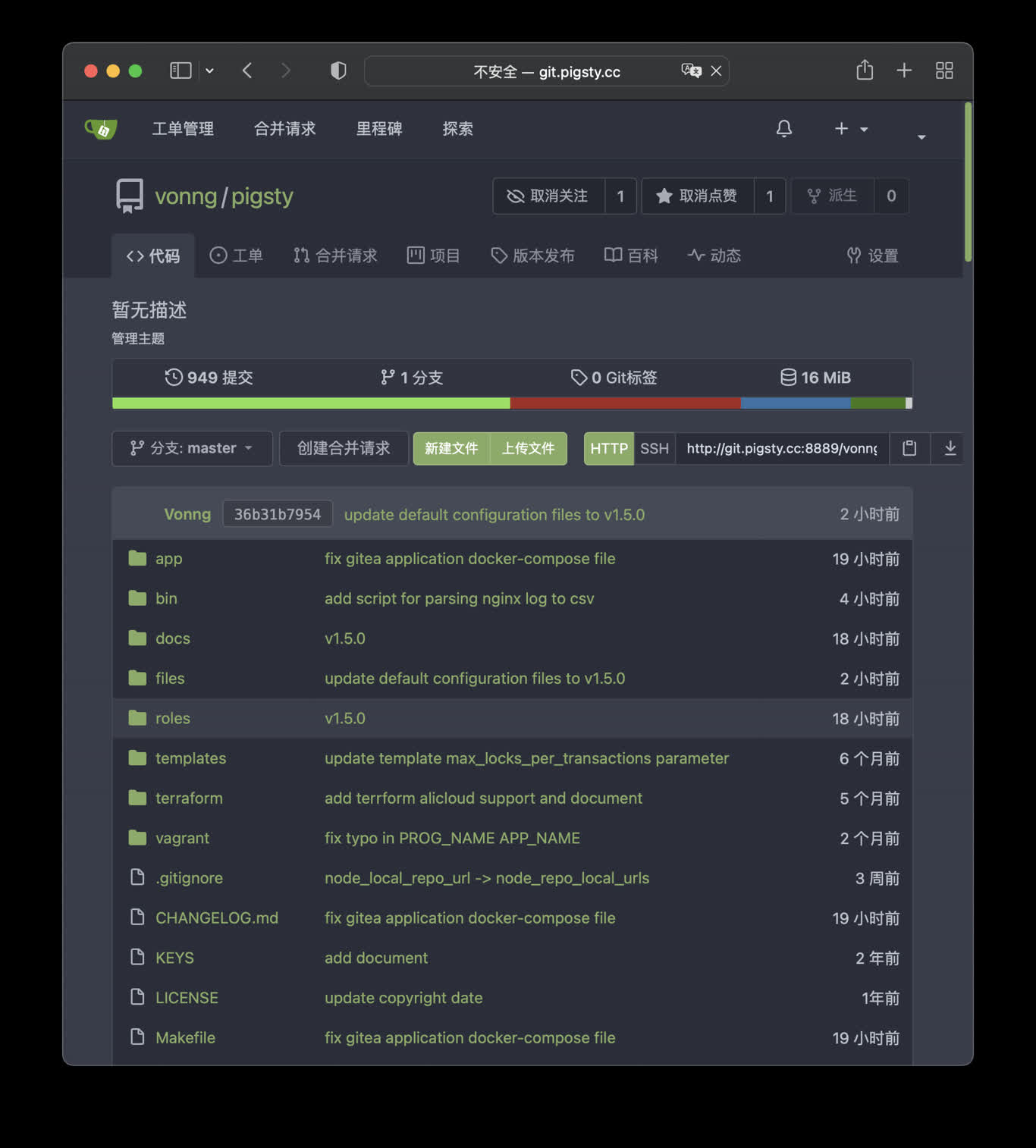
TL;DR
cd ~/pigsty/app/gitea; make up
Pigsty use 8889 port for gitea by default
http://git.pigsty or http://10.10.10.10:8889
make up      # pull up gitea with docker-compose in minimal mode
make run     # launch gitea with docker , local data dir and external PostgreSQL
make view    # print gitea access point
make log     # tail -f gitea logs
make info    # introspect gitea with jq
make stop    # stop gitea container
make clean   # remove gitea container
make pull    # pull latest gitea image
make rmi     # remove gitea image
make save    # save gitea image to /tmp/gitea.tgz
make load    # load gitea image from /tmp
PostgreSQL Preparation
Gitea use built-in SQLite as default metadata storage, you can let Gitea use external PostgreSQL by setting connection string environment variable
# postgres://dbuser_gitea:DBUser.gitea@10.10.10.10:5432/gitea
db:   { name: gitea, owner: dbuser_gitea, comment: gitea primary database }
user: { name: dbuser_gitea , password: DBUser.gitea, roles: [ dbrole_admin ] }
8 - Wiki.js: OSS Wiki Software
How to self-hosting your own wikipedia with Wiki.js and use Pigsty managed PostgreSQL as the backend database
Public Demo: http://wiki.pigsty.cc
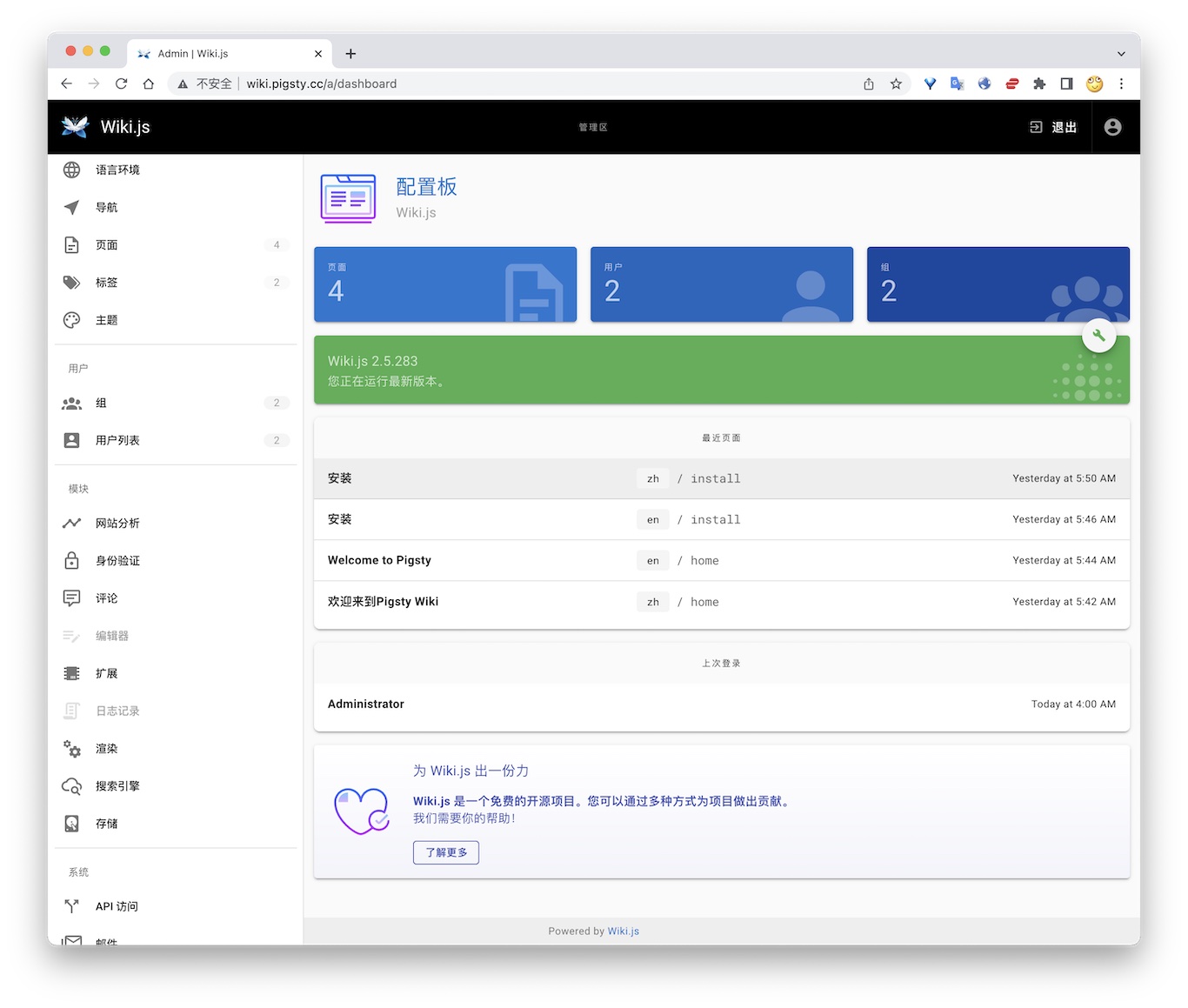
TL; DR
cd app/wiki ; docker-compose up -d
Postgres Preparation
# postgres://dbuser_wiki:DBUser.Wiki@10.10.10.10:5432/wiki
- { name: wiki, owner: dbuser_wiki, revokeconn: true , comment: wiki the api gateway database }
- { name: dbuser_wiki, password: DBUser.Wiki , pgbouncer: true , roles: [ dbrole_admin ] }
bin/pgsql-user pg-meta dbuser_wiki
bin/pgsql-db   pg-meta wiki
Configuration
version: "3"
services:
  wiki:
    container_name: wiki
    image: requarks/wiki:2
    environment:
      DB_TYPE: postgres
      DB_HOST: 10.10.10.10
      DB_PORT: 5432
      DB_USER: dbuser_wiki
      DB_PASS: DBUser.Wiki
      DB_NAME: wiki
    restart: unless-stopped
    ports:
      - "9002:3000"
Access
- Default Port for wiki: 9002
# add to nginx_upstream
- { name: wiki  , domain: wiki.pigsty.cc , endpoint: "127.0.0.1:9002"   }
./infra.yml -t nginx_config
ansible all -b -a 'nginx -s reload'
9 - Mattermost: Open-Source IM
Build a private team collaboration platform with Mattermost, the open-source Slack alternative.
Mattermost is an open-source team collaboration and messaging platform.
Mattermost provides instant messaging, file sharing, audio/video calls, and more. It’s an open-source alternative to Slack and Microsoft Teams, particularly suitable for enterprises requiring self-hosted deployment.
Quick Start
cd ~/pigsty/app/mattermost
make up     # Start Mattermost with Docker Compose
Access URL: http://mattermost.pigsty or http://10.10.10.10:8065
First-time access requires creating an administrator account.
Features
- Instant Messaging: Personal and group chat
- Channel Management: Public and private channels
- File Sharing: Secure file storage and sharing
- Audio/Video Calls: Built-in calling functionality
- Integration Capabilities: Webhooks, Bots, and plugins support
- Mobile Apps: iOS and Android clients
- Enterprise-grade: SSO, LDAP, compliance features
Connect to PostgreSQL
Mattermost uses PostgreSQL for data storage. Configure the connection information:
MM_SQLSETTINGS_DRIVERNAME=postgres
MM_SQLSETTINGS_DATASOURCE=postgres://dbuser_mm:DBUser.MM@10.10.10.10:5432/mattermost
10 - Maybe: Personal Finance
Manage personal finances with Maybe, the open-source Mint/Personal Capital alternative.
Maybe is an open-source personal finance management application.
Maybe provides financial tracking, budget management, investment analysis, and more. It’s an open-source alternative to Mint and Personal Capital, giving you complete control over your financial data.
Quick Start
cd ~/pigsty/app/maybe
cp .env.example .env
vim .env                    # Must modify SECRET_KEY_BASE
make up                      # Start Maybe service
Access URL: http://maybe.pigsty or http://10.10.10.10:5002
Configuration
Configure in the .env file:
SECRET_KEY_BASE=your-secret-key-here    # Must modify!
DATABASE_URL=postgresql://...
Important: You must modify SECRET_KEY_BASE before first deployment!
Features
- Account Management: Track multiple bank accounts and credit cards
- Budget Planning: Set up and track budgets
- Investment Analysis: Monitor portfolio performance
- Bill Reminders: Automatic reminders for upcoming bills
- Privacy-first: Data is completely under your control
11 - Metabase: BI Analytics Tool
Use Metabase for rapid business intelligence analysis with a user-friendly interface for team self-service data exploration.
Metabase is a fast, easy-to-use open-source business intelligence tool that lets your team explore and visualize data without SQL knowledge.
Metabase provides a friendly user interface with rich chart types and supports connecting to various databases, making it an ideal choice for enterprise data analysis.
Quick Start
Pigsty provides a Docker Compose configuration file for Metabase in the software template directory:
Review and modify the .env configuration file:
vim .env # Check configuration, recommend changing default credentials
Start the service:
make up # Start Metabase with Docker Compose
Access Metabase:
- Default URL: http://metabase.pigsty
- Alternate URL: http://10.10.10.10:3001
- First-time access requires initial setup
Management Commands
Pigsty provides convenient Makefile commands to manage Metabase:
make up      # Start Metabase service
make run     # Start with Docker (connect to external PostgreSQL)
make view    # Display Metabase access URL
make log     # View container logs
make info    # View service details
make stop    # Stop the service
make clean   # Stop and remove containers
make pull    # Pull the latest image
make rmi     # Remove Metabase image
make save    # Save image to file
make load    # Load image from file
Connect to PostgreSQL
Metabase can connect to PostgreSQL databases managed by Pigsty.
During Metabase initialization or when adding a database, select “PostgreSQL” and enter the connection information:
Database Type: PostgreSQL
Name: Custom name (e.g., "Production Database")
Host: 10.10.10.10
Port: 5432
Database Name: your_database
Username: dbuser_meta
Password: DBUser.Meta
After successful connection, Metabase will automatically scan the database schema, and you can start creating questions and dashboards.
Features
- No SQL Required: Build queries through visual interface
- Rich Chart Types: Line, bar, pie, map charts, and more
- Interactive Dashboards: Create beautiful data dashboards
- Auto Refresh: Schedule data and dashboard updates
- Permission Management: Fine-grained user and data access control
- SQL Mode: Advanced users can write SQL directly
- Embedding: Embed charts into other applications
- Alerting: Automatic notifications on data changes
Configuration
Metabase configuration is in the .env file:
# Metabase metadata database (PostgreSQL recommended)
MB_DB_TYPE=postgres
MB_DB_DBNAME=metabase
MB_DB_PORT=5432
MB_DB_USER=dbuser_metabase
MB_DB_PASS=DBUser.Metabase
MB_DB_HOST=10.10.10.10

# Application configuration
JAVA_OPTS=-Xmx2g
Recommended: Use a dedicated PostgreSQL database for storing Metabase metadata.
Data Persistence
Metabase metadata (users, questions, dashboards, etc.) is stored in the configured database.
If using H2 database (default), data is saved in the /data/metabase directory. Using PostgreSQL as the metadata database is strongly recommended for production environments.
- Use PostgreSQL: Replace the default H2 database
- Increase Memory: Add JVM memory with
JAVA_OPTS=-Xmx4g - Database Indexes: Create indexes for frequently queried fields
- Result Caching: Enable Metabase query result caching
- Scheduled Updates: Set reasonable dashboard auto-refresh frequency
Security Recommendations
- Change Default Credentials: Modify metadata database username and password
- Enable HTTPS: Configure SSL certificates for production
- Configure Authentication: Enable SSO or LDAP authentication
- Restrict Access: Limit access through firewall
- Regular Backups: Back up the Metabase metadata database
12 - Kong: the Nginx API Gateway
Learn how to deploy Kong, the API gateway, with Docker Compose and use external PostgreSQL as the backend database
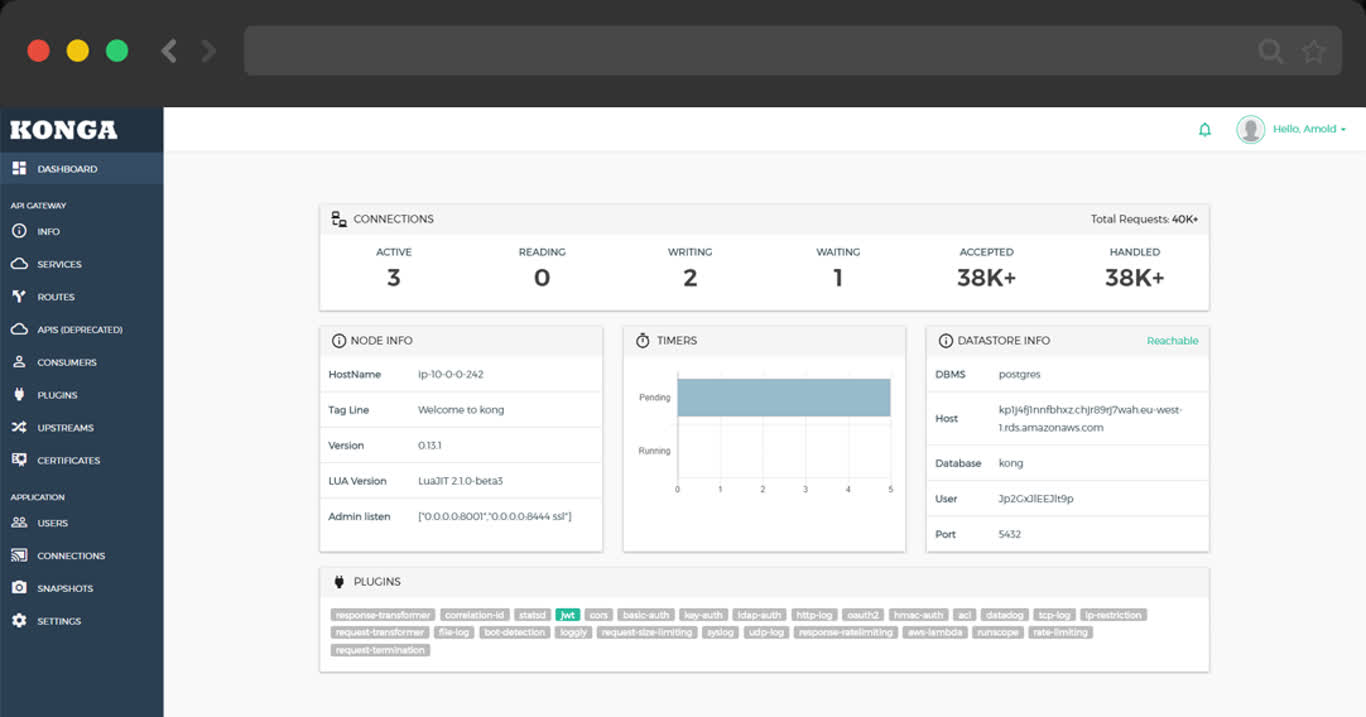
TL;DR
cd app/kong ; docker-compose up -d
make up         # pull up kong with docker-compose
make ui         # run swagger ui container
make log        # tail -f kong logs
make info       # introspect kong with jq
make stop       # stop kong container
make clean      # remove kong container
make rmui       # remove swagger ui container
make pull       # pull latest kong image
make rmi        # remove kong image
make save       # save kong image to /tmp/kong.tgz
make load       # load kong image from /tmp
Scripts
- Default Port: 8000
- Default SSL Port: 8443
- Default Admin Port: 8001
- Default Postgres Database:
postgres://dbuser_kong:DBUser.Kong@10.10.10.10:5432/kong
# postgres://dbuser_kong:DBUser.Kong@10.10.10.10:5432/kong
- { name: kong, owner: dbuser_kong, revokeconn: true , comment: kong the api gateway database }
- { name: dbuser_kong, password: DBUser.Kong , pgbouncer: true , roles: [ dbrole_admin ] }
13 - Registry: Container Image Mirror
Deploy Docker Registry mirror service to accelerate Docker image pulls, especially useful for users in China.
Docker Registry mirror service caches images from Docker Hub and other registries.
Particularly useful for users in China or regions with slow Docker Hub access, significantly reducing image pull times.
Quick Start
cd ~/pigsty/app/registry
make up     # Start Registry mirror service
Access URL: http://registry.pigsty or http://10.10.10.10:5000
Features
- Image Caching: Cache images from Docker Hub and other registries
- Web Interface: Optional image management UI
- High Performance: Local caching dramatically improves pull speed
- Storage Management: Configurable cleanup and management policies
- Health Checks: Built-in health check endpoints
Configure Docker to use the local mirror:
# Edit /etc/docker/daemon.json
{
  "registry-mirrors": ["http://10.10.10.10:5000"]
}

# Restart Docker
systemctl restart docker
Storage Management
Image data is stored in the /data/registry directory. Reserve at least 100GB of space.
14 - Database Tools
Database management and development tools
15 - ByteBase: PG Schema Migration
Self-hosting bytebase with PostgreSQL managed by Pigsty
ByteBase
ByteBase is a database schema change management tool. The following command will start a ByteBase on the meta node 8887 port by default.
mkdir -p /data/bytebase/data;
docker run --init --name bytebase --restart always --detach --publish 8887:8887 --volume /data/bytebase/data:/var/opt/bytebase \
    bytebase/bytebase:1.0.4 --data /var/opt/bytebase --host http://ddl.pigsty --port 8887
Then visit http://10.10.10.10:8887/ or http://ddl.pigsty to access bytebase console. You have to “Create Project”, “Env”, “Instance”, “Database” to perform schema migration.
Public Demo: http://ddl.pigsty.cc
Default username & password: admin / pigsty
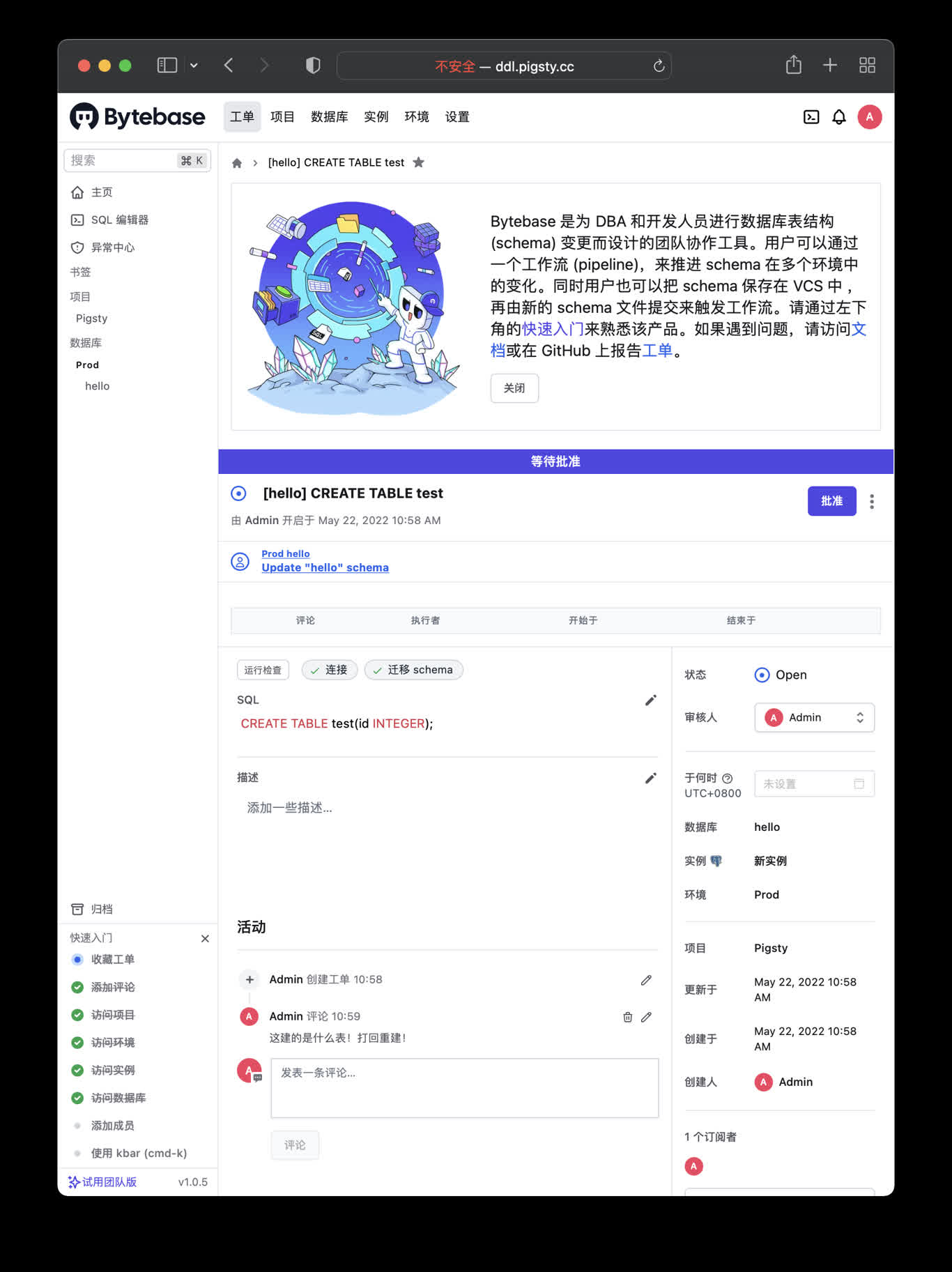
Bytebase Overview
Schema Migrator for PostgreSQL
Visit http://ddl.pigsty or http://10.10.10.10:8887
make up         # pull up bytebase with docker-compose in minimal mode
make run        # launch bytebase with docker , local data dir and external PostgreSQL
make view       # print bytebase access point
make log        # tail -f bytebase logs
make info       # introspect bytebase with jq
make stop       # stop bytebase container
make clean      # remove bytebase container
make pull       # pull latest bytebase image
make rmi        # remove bytebase image
make save       # save bytebase image to /tmp/bytebase.tgz
make load       # load bytebase image from /tmp
PostgreSQL Preparation
Bytebase use its internal PostgreSQL database by default, You can use external PostgreSQL for higher durability.
# postgres://dbuser_bytebase:DBUser.Bytebase@10.10.10.10:5432/bytebase
db:   { name: bytebase, owner: dbuser_bytebase, comment: bytebase primary database }
user: { name: dbuser_bytebase , password: DBUser.Bytebase, roles: [ dbrole_admin ] }
if you wish to user an external PostgreSQL, drop monitor extensions and views & pg_repack
DROP SCHEMA monitor CASCADE;
DROP EXTENSION pg_repack;
After bytebase initialized, you can create them back with /pg/tmp/pg-init-template.sql
psql bytebase < /pg/tmp/pg-init-template.sql
16 - PGAdmin4: PG Admin GUI Tool
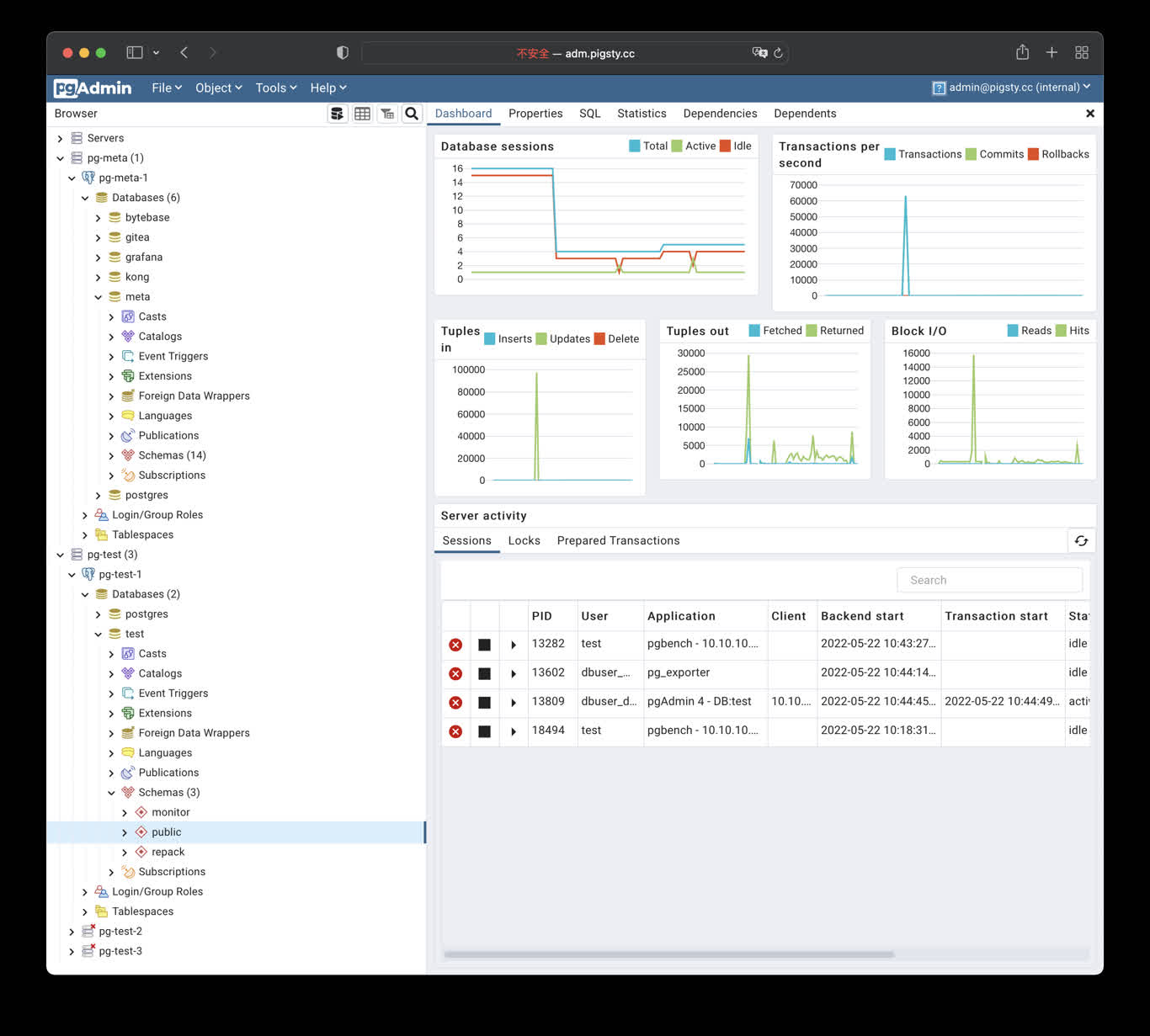
Launch pgAdmin4 with docker, and load Pigsty server list into it
pgAdmin4 is a useful PostgreSQL management tool. Execute the following command to launch the pgadmin service on the admin node:
cd ~/pigsty/app/pgadmin ; docker-compose up -d
The default port for pgadmin is 8885, and you can access it through the following address:
http://adm.pigsty
Demo
Public Demo: http://adm.pigsty.cc
Credentials: admin@pigsty.cc / pigsty
TL; DR
cd ~/pigsty/app/pgadmin   # enter docker compose dir
make up                   # launch pgadmin container
make conf view            # load pigsty server list
Shortcuts:
make up         # pull up pgadmin with docker-compose
make run        # launch pgadmin with docker
make view       # print pgadmin access point
make log        # tail -f pgadmin logs
make info       # introspect pgadmin with jq
make stop       # stop pgadmin container
make clean      # remove pgadmin container
make conf       # provision pgadmin with pigsty pg servers list
make dump       # dump servers.json from pgadmin container
make pull       # pull latest pgadmin image
make rmi        # remove pgadmin image
make save       # save pgadmin image to /tmp/pgadmin.tgz
make load       # load pgadmin image from /tmp
17 - PGWeb: Browser-based PG Client
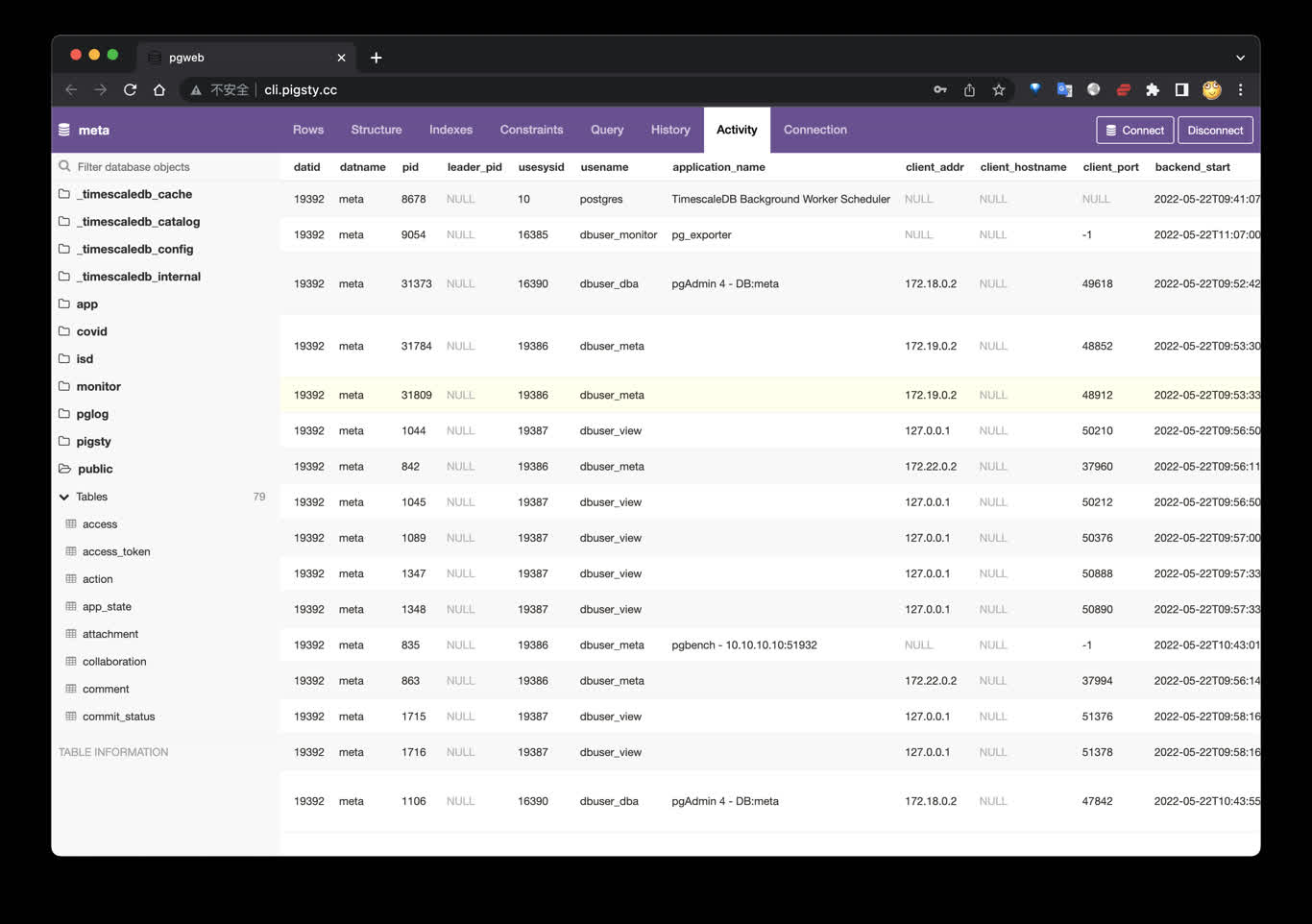
Launch pgweb to access PostgreSQL via web browser
PGWEB: https://github.com/sosedoff/pgweb
Simple web-based and cross-platform PostgreSQL database explorer.
Public Demo: http://cli.pigsty.cc
TL; DR
cd ~/pigsty/app/pgweb ; make up
Visit http://cli.pigsty or http://10.10.10.10:8886
Try connecting with example URLs:
postgres://dbuser_meta:DBUser.Meta@10.10.10.10:5432/meta?sslmode=disable
postgres://test:test@10.10.10.11:5432/test?sslmode=disable
make up         # pull up pgweb with docker compose
make run        # launch pgweb with docker
make view       # print pgweb access point
make log        # tail -f pgweb logs
make info       # introspect pgweb with jq
make stop       # stop pgweb container
make clean      # remove pgweb container
make pull       # pull latest pgweb image
make rmi        # remove pgweb image
make save       # save pgweb image to /tmp/docker/pgweb.tgz
make load       # load pgweb image from /tmp/docker/pgweb.tgz
18 - PostgREST: Generate REST API from Schema
Launch postgREST to generate REST API from PostgreSQL schema automatically
PostgREST is a binary component that automatically generates a REST API
based on the PostgreSQL database schema.
For example, the following command will launch postgrest with docker (local port 8884, using default admin user, and
expose Pigsty CMDB schema):
docker run --init --name postgrest --restart always --detach --publish 8884:8081 postgrest/postgrest
Visit http://10.10.10.10:8884 will show all auto-generated API definitions and automatically
expose API documentation using Swagger Editor.
If you wish to perform CRUD operations and design more fine-grained permission control, please refer
to Tutorial 1 - The Golden Key to generate a signed JWT.
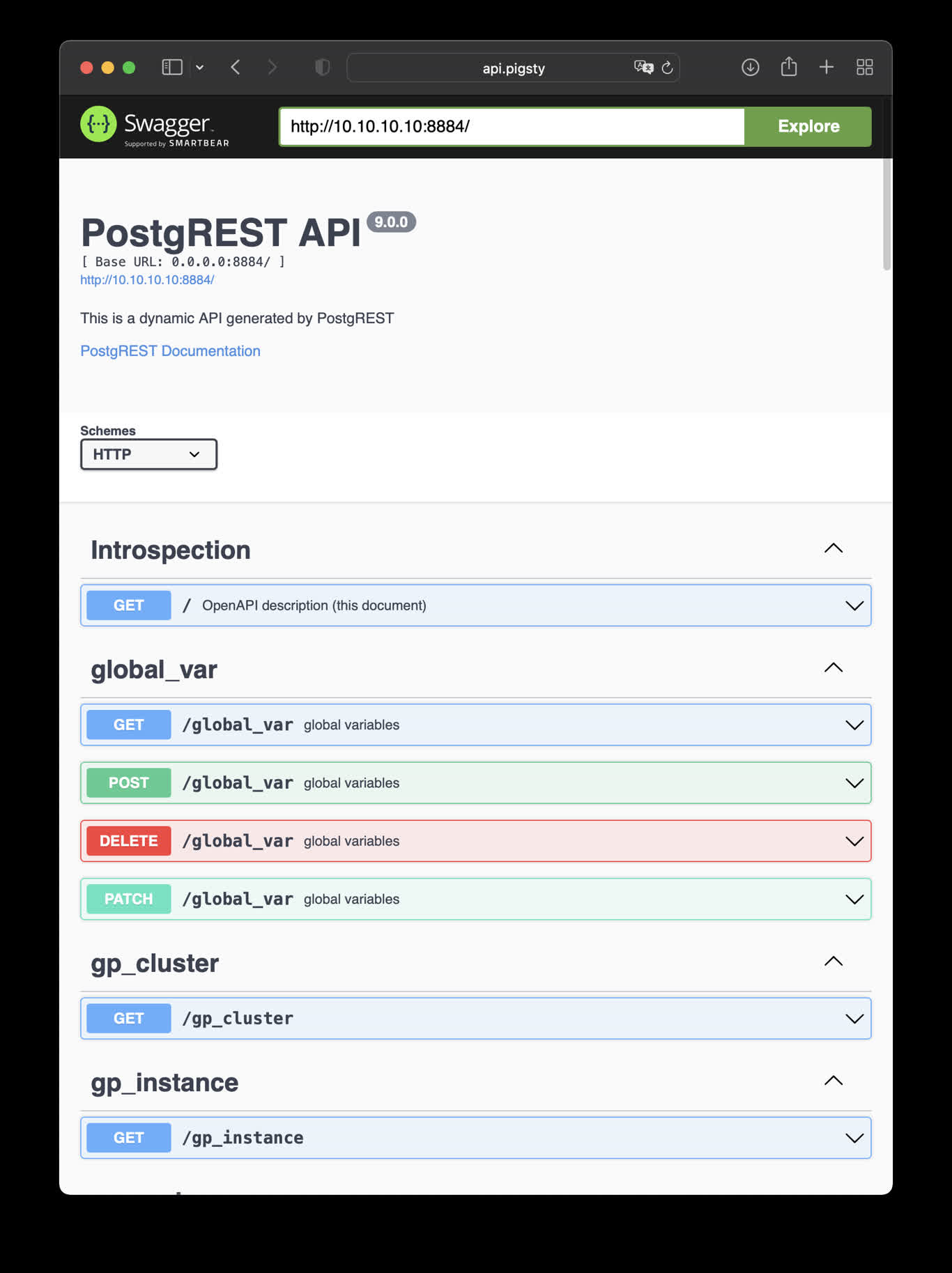
This is an example of creating pigsty cmdb API with PostgREST
cd ~/pigsty/app/postgrest ; docker-compose up -d
http://10.10.10.10:8884 is the default endpoint for PostgREST
http://10.10.10.10:8883 is the default api docs for PostgREST
make up         # pull up postgrest with docker-compose
make run        # launch postgrest with docker
make ui         # run swagger ui container
make view       # print postgrest access point
make log        # tail -f postgrest logs
make info       # introspect postgrest with jq
make stop       # stop postgrest container
make clean      # remove postgrest container
make rmui       # remove swagger ui container
make pull       # pull latest postgrest image
make rmi        # remove postgrest image
make save       # save postgrest image to /tmp/postgrest.tgz
make load       # load postgrest image from /tmp
Swagger UI
Launch a swagger OpenAPI UI and visualize PostgREST API on 8883 with:
docker run --init --name postgrest --name swagger -p 8883:8080 -e API_URL=http://10.10.10.10:8884 swaggerapi/swagger-ui
# docker run -d -e API_URL=http://10.10.10.10:8884 -p 8883:8080 swaggerapi/swagger-editor # swagger editor
Check http://10.10.10.10:8883/
19 - Electric: PGLite Sync Engine
Use Electric to solve PostgreSQL data synchronization challenges with partial replication and real-time data transfer.
Electric is a PostgreSQL sync engine that solves complex data synchronization problems.
Electric supports partial replication, fan-out delivery, and efficient data transfer, making it ideal for building real-time and offline-first applications.
Quick Start
cd ~/pigsty/app/electric
make up     # Start Electric service
Access URL: http://electric.pigsty or http://10.10.10.10:3000
Features
- Partial Replication: Sync only the data you need
- Real-time Sync: Millisecond-level data updates
- Offline-first: Work offline with automatic sync
- Conflict Resolution: Automatic handling of data conflicts
- Type Safety: TypeScript support
20 - Jupyter: AI Notebook & IDE
Run Jupyter Lab in container, and access PostgreSQL database
Run jupyter notebook with docker, you have to:
- change the default password in
.env: JUPYTER_TOKEN
- create data dir with proper permission:
make dir, owned by 1000:100
make up to pull up jupyter with docker compose
cd ~/pigsty/app/jupyter ; make dir up
Visit http://lab.pigsty or http://10.10.10.10:8888, the default password is pigsty
Prepare
Create a data directory /data/jupyter, with the default uid & gid 1000:100:
make dir # mkdir -p /data/jupyter; chown -R 1000:100 /data/jupyter
Connect to Postgres
Use the jupyter terminal to install psycopg2-binary & psycopg2 package.
pip install psycopg2-binary psycopg2

# install with a mirror
pip install -i https://pypi.tuna.tsinghua.edu.cn/simple psycopg2-binary psycopg2

pip install --upgrade pip
pip config set global.index-url https://pypi.tuna.tsinghua.edu.cn/simple
Or installation with conda:
conda config --add channels https://mirrors.tuna.tsinghua.edu.cn/anaconda/pkgs/free/
conda config --add channels https://mirrors.tuna.tsinghua.edu.cn/anaconda/pkgs/main/
conda config --add channels https://mirrors.tuna.tsinghua.edu.cn/anaconda/cloud/conda-forge/
then use the driver in your notebook
import psycopg2

conn = psycopg2.connect('postgres://dbuser_dba:DBUser.DBA@10.10.10.10:5432/meta')
cursor = conn.cursor()
cursor.execute('SELECT * FROM pg_stat_activity')
for i in cursor.fetchall():
    print(i)
Alias
make up         # pull up jupyter with docker compose
make dir        # create required /data/jupyter and set owner
make run        # launch jupyter with docker
make view       # print jupyter access point
make log        # tail -f jupyter logs
make info       # introspect jupyter with jq
make stop       # stop jupyter container
make clean      # remove jupyter container
make pull       # pull latest jupyter image
make rmi        # remove jupyter image
make save       # save jupyter image to /tmp/docker/jupyter.tgz
make load       # load jupyter image from /tmp/docker/jupyter.tgz
21 - Data Applications
PostgreSQL-based data visualization applications
22 - PGLOG: PostgreSQL Log Analysis Application
A sample Applet included with Pigsty for analyzing PostgreSQL CSV log samples
PGLOG is a sample application included with Pigsty that uses the pglog.sample table in MetaDB as its data source. You simply need to load logs into this table, then access the related dashboard.
Pigsty provides convenient commands for pulling CSV logs and loading them into the sample table. On the meta node, the following shortcut commands are available by default:
catlog  [node=localhost]  [date=today]   # Print CSV log to stdout
pglog                                    # Load CSVLOG from stdin
pglog12                                  # Load PG12 format CSVLOG
pglog13                                  # Load PG13 format CSVLOG
pglog14                                  # Load PG14 format CSVLOG (=pglog)

catlog | pglog                       # Analyze current node's log for today
catlog node-1 '2021-07-15' | pglog   # Analyze node-1's csvlog for 2021-07-15
Next, you can access the following links to view the sample log analysis interface.
- PGLOG Overview: Present the entire CSV log sample details, aggregated by multiple dimensions.
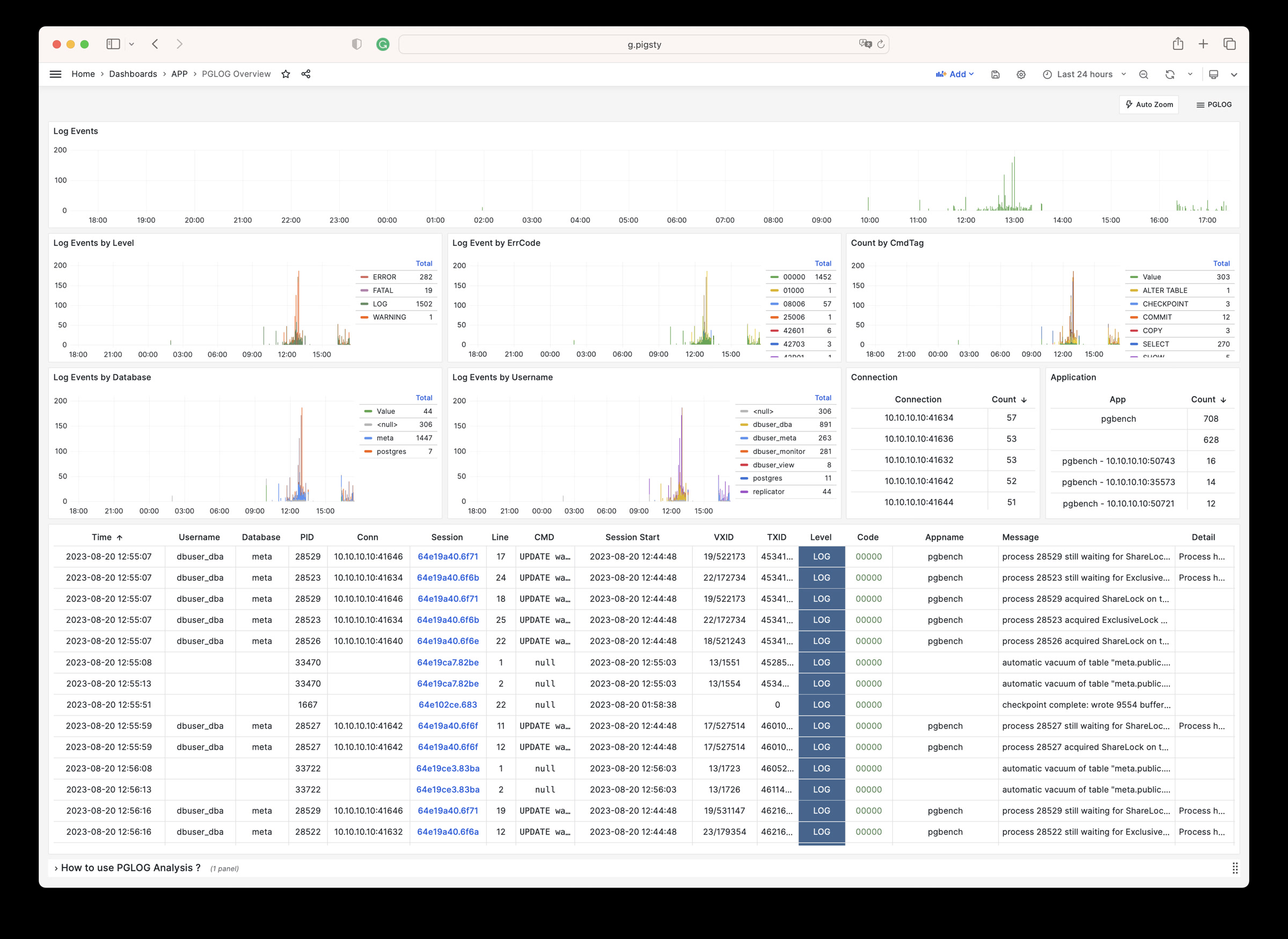
- PGLOG Session: Present detailed information about a specific connection in the log sample.
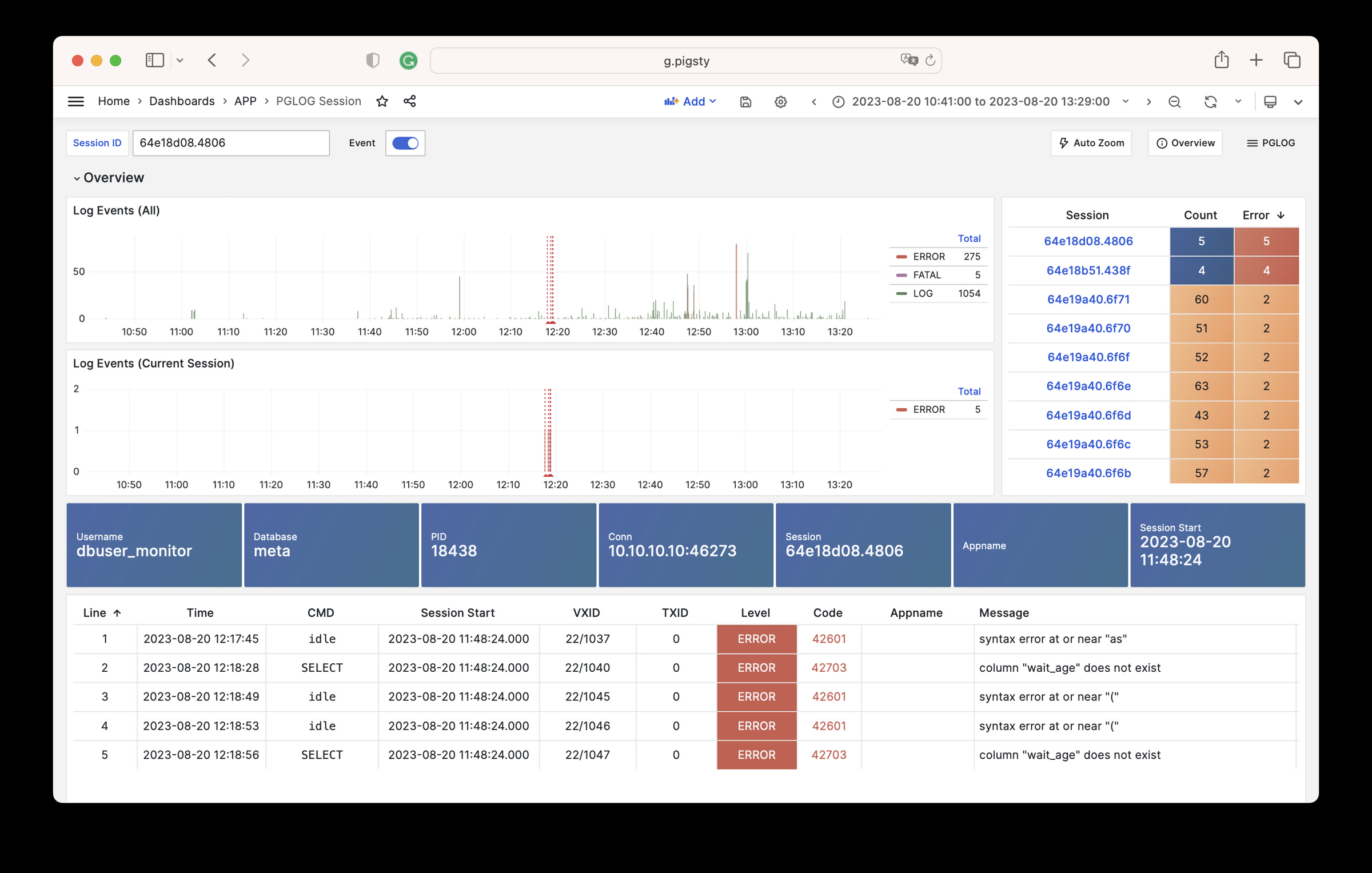
The catlog command pulls CSV database logs from a specific node for a specific date and writes to stdout
By default, catlog pulls logs from the current node for today. You can specify the node and date through parameters.
Using pglog and catlog together, you can quickly pull database CSV logs for analysis.
catlog | pglog                       # Analyze current node's log for today
catlog node-1 '2021-07-15' | pglog   # Analyze node-1's csvlog for 2021-07-15
23 - NOAA ISD Global Weather Station Historical Data Query
Demonstrate how to import data into a database using the ISD dataset as an example
If you have a database and don’t know what to do with it, why not try this open-source project: Vonng/isd
You can directly reuse the monitoring system Grafana to interactively browse sub-hourly meteorological data from nearly 30,000 surface weather stations over the past 120 years.
This is a fully functional data application that can query meteorological observation records from 30,000 global surface weather stations since 1901.
Project URL: https://github.com/Vonng/isd
Online Demo: https://demo.pigsty.io/d/isd-overview
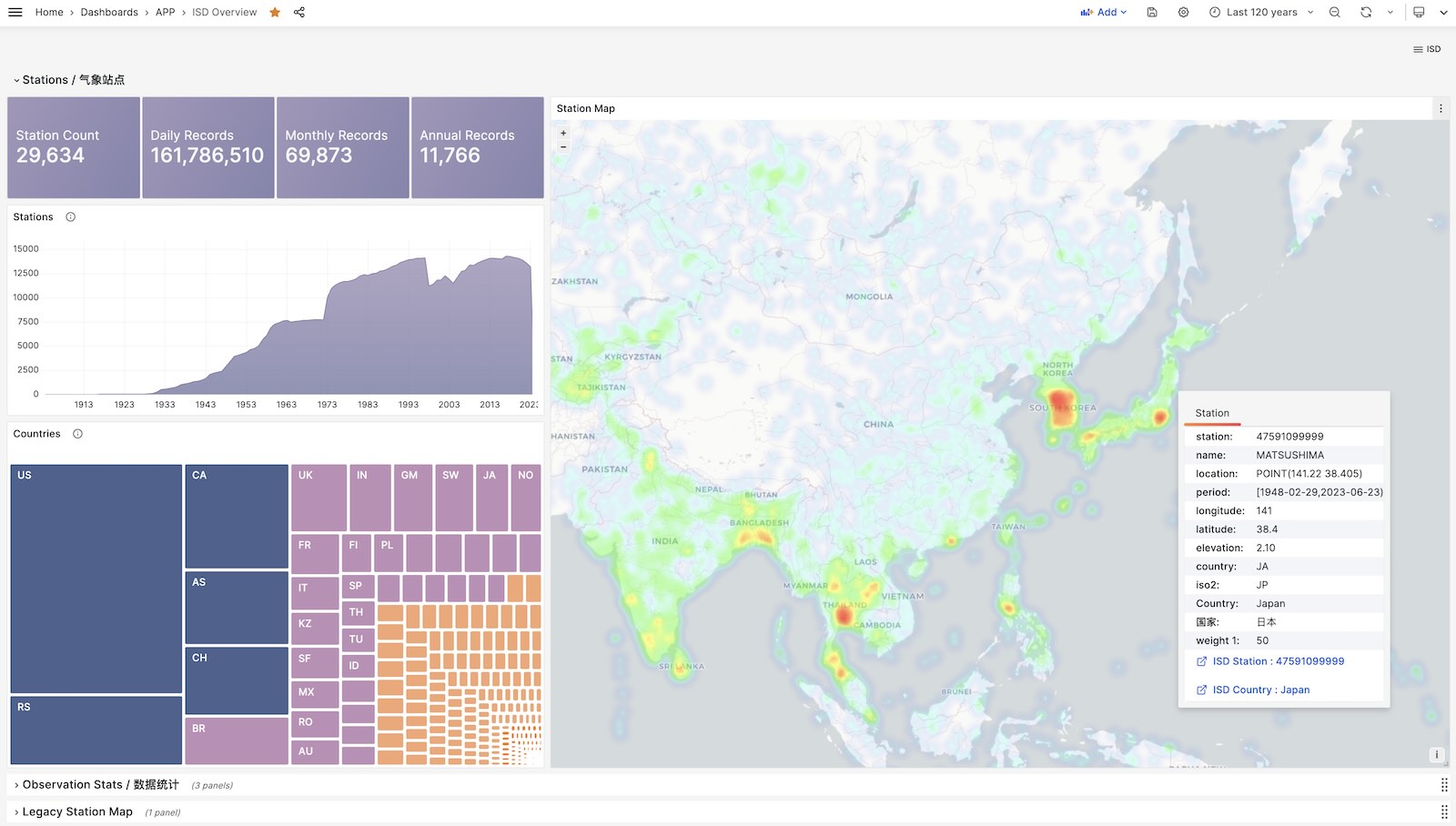
Quick Start
Clone this repository
git clone https://github.com/Vonng/isd.git; cd isd;
Prepare a PostgreSQL instance
The PostgreSQL instance should have the PostGIS extension enabled. Use the PGURL environment variable to pass database connection information:
# Pigsty uses dbuser_dba as the default admin account with password DBUser.DBA
export PGURL=postgres://dbuser_dba:DBUser.DBA@127.0.0.1:5432/meta?sslmode=disable
psql "${PGURL}" -c 'SELECT 1'  # Check if connection is available
Fetch and import ISD weather station metadata
This is a daily-updated weather station metadata file containing station longitude/latitude, elevation, name, country, province, and other information. Use the following command to download and import:
make reload-station # Equivalent to downloading the latest station data then loading: get-station + load-station
Fetch and import the latest isd.daily data
isd.daily is a daily-updated dataset containing daily observation data summaries from global weather stations. Use the following command to download and import.
Note that raw data downloaded directly from the NOAA website needs to be parsed before it can be loaded into the database, so you need to download or build an ISD data parser.
make get-parser       # Download the parser binary from Github, or you can build directly with go using make build
make reload-daily     # Download and import the latest isd.daily data for this year into the database
Load pre-parsed CSV dataset
The ISD Daily dataset has some dirty data and duplicate data. If you don’t want to manually parse and clean it, a stable pre-parsed CSV dataset is also provided here.
This dataset contains isd.daily data up to 2023-06-24. You can download and import it directly into PostgreSQL without needing a parser.
make get-stable       # Get the stable isd.daily historical dataset from Github
make load-stable      # Load the downloaded stable historical dataset into the PostgreSQL database
More Data
Two parts of the ISD dataset are updated daily: weather station metadata and the latest year’s isd.daily (e.g., the 2023 tarball).
You can use the following command to download and refresh these two parts. If the dataset hasn’t been updated, these commands won’t re-download the same data package:
make reload # Actually: reload-station + reload-daily
You can also use the following commands to download and load isd.daily data for a specific year:
bin/get-daily  2022                   # Get daily weather observation summary for 2022 (1900-2023)
bin/load-daily "${PGURL}" 2022        # Load daily weather observation summary for 2022 (1900-2023)
In addition to the daily summary isd.daily, ISD also provides more detailed sub-hourly raw observation records isd.hourly. The download and load methods are similar:
bin/get-hourly  2022                  # Download hourly observation records for a specific year (e.g., 2022, options 1900-2023)
bin/load-hourly "${PGURL}" 2022       # Load hourly observation records for a specific year
Data
Dataset Overview
ISD provides four datasets: sub-hourly raw observation data, daily statistical summary data, monthly statistical summary, and yearly statistical summary
| Dataset | Notes |
|---|
| ISD Hourly | Sub-hourly observation records |
| ISD Daily | Daily statistical summary |
| ISD Monthly | Not used, can be calculated from isd.daily |
| ISD Yearly | Not used, can be calculated from isd.daily |
Daily Summary Dataset
- Compressed package size 2.8GB (as of 2023-06-24)
- Table size 24GB, index size 6GB, total size approximately 30GB in PostgreSQL
- If timescaledb compression is enabled, total size can be compressed to 4.5 GB
Sub-hourly Observation Data
- Total compressed package size 117GB
- After loading into database: table size 1TB+, index size 600GB+, total size 1.6TB
Database Schema
Weather Station Metadata Table
CREATE TABLE isd.station
(
    station    VARCHAR(12) PRIMARY KEY,
    usaf       VARCHAR(6) GENERATED ALWAYS AS (substring(station, 1, 6)) STORED,
    wban       VARCHAR(5) GENERATED ALWAYS AS (substring(station, 7, 5)) STORED,
    name       VARCHAR(32),
    country    VARCHAR(2),
    province   VARCHAR(2),
    icao       VARCHAR(4),
    location   GEOMETRY(POINT),
    longitude  NUMERIC GENERATED ALWAYS AS (Round(ST_X(location)::NUMERIC, 6)) STORED,
    latitude   NUMERIC GENERATED ALWAYS AS (Round(ST_Y(location)::NUMERIC, 6)) STORED,
    elevation  NUMERIC,
    period     daterange,
    begin_date DATE GENERATED ALWAYS AS (lower(period)) STORED,
    end_date   DATE GENERATED ALWAYS AS (upper(period)) STORED
);
Daily Summary Table
CREATE TABLE IF NOT EXISTS isd.daily
(
    station     VARCHAR(12) NOT NULL, -- station number 6USAF+5WBAN
    ts          DATE        NOT NULL, -- observation date
    -- Temperature & Dew Point
    temp_mean   NUMERIC(3, 1),        -- mean temperature ℃
    temp_min    NUMERIC(3, 1),        -- min temperature ℃
    temp_max    NUMERIC(3, 1),        -- max temperature ℃
    dewp_mean   NUMERIC(3, 1),        -- mean dew point ℃
    -- Air Pressure
    slp_mean    NUMERIC(5, 1),        -- sea level pressure (hPa)
    stp_mean    NUMERIC(5, 1),        -- station pressure (hPa)
    -- Visibility
    vis_mean    NUMERIC(6),           -- visible distance (m)
    -- Wind Speed
    wdsp_mean   NUMERIC(4, 1),        -- average wind speed (m/s)
    wdsp_max    NUMERIC(4, 1),        -- max wind speed (m/s)
    gust        NUMERIC(4, 1),        -- max wind gust (m/s)
    -- Precipitation / Snow Depth
    prcp_mean   NUMERIC(5, 1),        -- precipitation (mm)
    prcp        NUMERIC(5, 1),        -- rectified precipitation (mm)
    sndp        NuMERIC(5, 1),        -- snow depth (mm)
    -- FRSHTT (Fog/Rain/Snow/Hail/Thunder/Tornado)
    is_foggy    BOOLEAN,              -- (F)og
    is_rainy    BOOLEAN,              -- (R)ain or Drizzle
    is_snowy    BOOLEAN,              -- (S)now or pellets
    is_hail     BOOLEAN,              -- (H)ail
    is_thunder  BOOLEAN,              -- (T)hunder
    is_tornado  BOOLEAN,              -- (T)ornado or Funnel Cloud
    -- Record counts used for statistical aggregation
    temp_count  SMALLINT,             -- record count for temp
    dewp_count  SMALLINT,             -- record count for dew point
    slp_count   SMALLINT,             -- record count for sea level pressure
    stp_count   SMALLINT,             -- record count for station pressure
    wdsp_count  SMALLINT,             -- record count for wind speed
    visib_count SMALLINT,             -- record count for visible distance
    -- Temperature flags
    temp_min_f  BOOLEAN,              -- aggregate min temperature
    temp_max_f  BOOLEAN,              -- aggregate max temperature
    prcp_flag   CHAR,                 -- precipitation flag: ABCDEFGHI
    PRIMARY KEY (station, ts)
); -- PARTITION BY RANGE (ts);
Sub-hourly Raw Observation Data Table
ISD Hourly
CREATE TABLE IF NOT EXISTS isd.hourly
(
    station    VARCHAR(12) NOT NULL, -- station id
    ts         TIMESTAMP   NOT NULL, -- timestamp
    -- air
    temp       NUMERIC(3, 1),        -- [-93.2,+61.8]
    dewp       NUMERIC(3, 1),        -- [-98.2,+36.8]
    slp        NUMERIC(5, 1),        -- [8600,10900]
    stp        NUMERIC(5, 1),        -- [4500,10900]
    vis        NUMERIC(6),           -- [0,160000]
    -- wind
    wd_angle   NUMERIC(3),           -- [1,360]
    wd_speed   NUMERIC(4, 1),        -- [0,90]
    wd_gust    NUMERIC(4, 1),        -- [0,110]
    wd_code    VARCHAR(1),           -- code that denotes the character of the WIND-OBSERVATION.
    -- cloud
    cld_height NUMERIC(5),           -- [0,22000]
    cld_code   VARCHAR(2),           -- cloud code
    -- water
    sndp       NUMERIC(5, 1),        -- mm snow
    prcp       NUMERIC(5, 1),        -- mm precipitation
    prcp_hour  NUMERIC(2),           -- precipitation duration in hour
    prcp_code  VARCHAR(1),           -- precipitation type code
    -- sky
    mw_code    VARCHAR(2),           -- manual weather observation code
    aw_code    VARCHAR(2),           -- auto weather observation code
    pw_code    VARCHAR(1),           -- weather code of past period of time
    pw_hour    NUMERIC(2),           -- duration of pw_code period
    -- misc
    -- remark     TEXT,
    -- eqd        TEXT,
    data       JSONB                 -- extra data
) PARTITION BY RANGE (ts);
Parser
The raw data provided by NOAA ISD is in a highly compressed proprietary format that needs to be processed through a parser before it can be converted into database table format.
For the Daily and Hourly datasets, two parsers are provided here: isdd and isdh.
Both parsers take annual data compressed packages as input, produce CSV results as output, and work in pipeline mode as shown below:
NAME
        isd -- Intergrated Surface Dataset Parser

SYNOPSIS
        isd daily   [-i <input|stdin>] [-o <output|stout>] [-v]
        isd hourly  [-i <input|stdin>] [-o <output|stout>] [-v] [-d raw|ts-first|hour-first]

DESCRIPTION
        The isd program takes noaa isd daily/hourly raw tarball data as input.
        and generate parsed data in csv format as output. Works in pipe mode

        cat data/daily/2023.tar.gz | bin/isd daily -v | psql ${PGURL} -AXtwqc "COPY isd.daily FROM STDIN CSV;"

        isd daily  -v -i data/daily/2023.tar.gz  | psql ${PGURL} -AXtwqc "COPY isd.daily FROM STDIN CSV;"
        isd hourly -v -i data/hourly/2023.tar.gz | psql ${PGURL} -AXtwqc "COPY isd.hourly FROM STDIN CSV;"

OPTIONS
        -i  <input>     input file, stdin by default
        -o  <output>    output file, stdout by default
        -p  <profpath>  pprof file path, enable if specified
        -d              de-duplicate rows for hourly dataset (raw, ts-first, hour-first)
        -v              verbose mode
        -h              print help
User Interface
Several dashboards made with Grafana are provided here for exploring the ISD dataset and querying weather stations and historical meteorological data.
ISD Overview
Global overview with overall metrics and weather station navigation.
ISD Country
Display all weather stations within a single country/region.
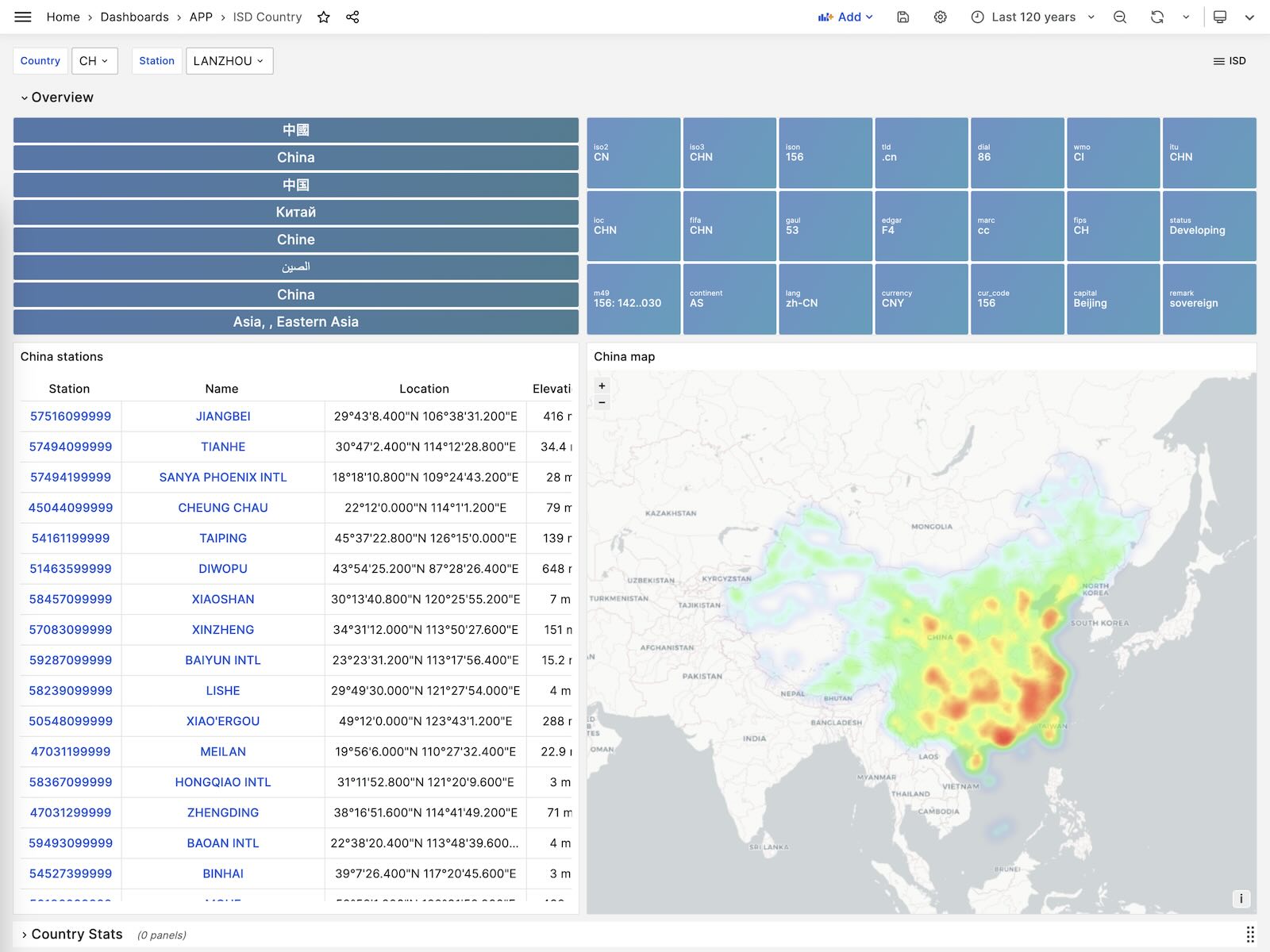
ISD Station
Display detailed information for a single weather station, including metadata and daily/monthly/yearly summary metrics.
ISD Station Dashboard
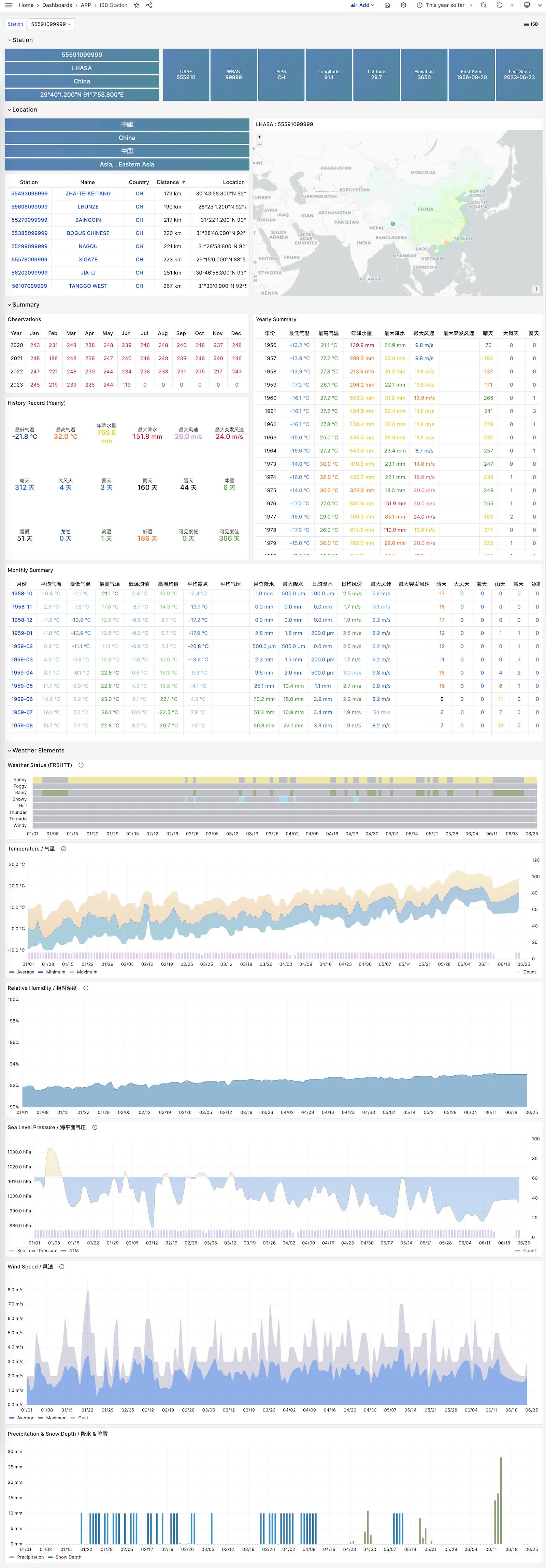
ISD Detail
Display raw sub-hourly observation metric data for a weather station, requires the isd.hourly dataset.
ISD Station Dashboard
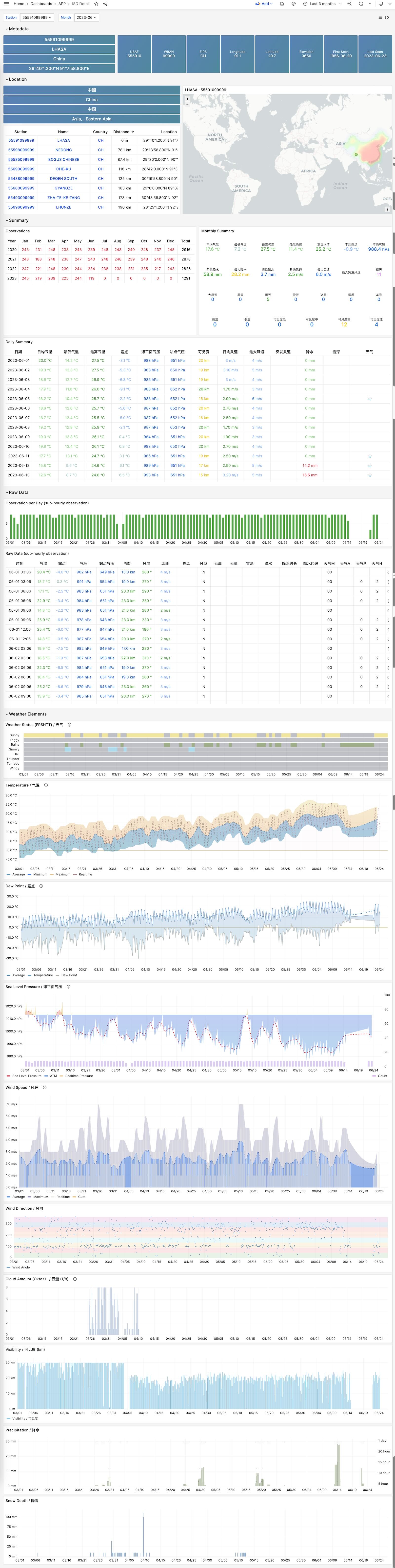
24 - WHO COVID-19 Pandemic Dashboard
A sample Applet included with Pigsty for visualizing World Health Organization official pandemic data
Covid is a sample Applet included with Pigsty for visualizing the World Health Organization’s official pandemic data dashboard.
You can browse COVID-19 infection and death cases for each country and region, as well as global pandemic trends.
Overview
GitHub Repository: https://github.com/Vonng/pigsty-app/tree/master/covid
Online Demo: https://demo.pigsty.io/d/covid
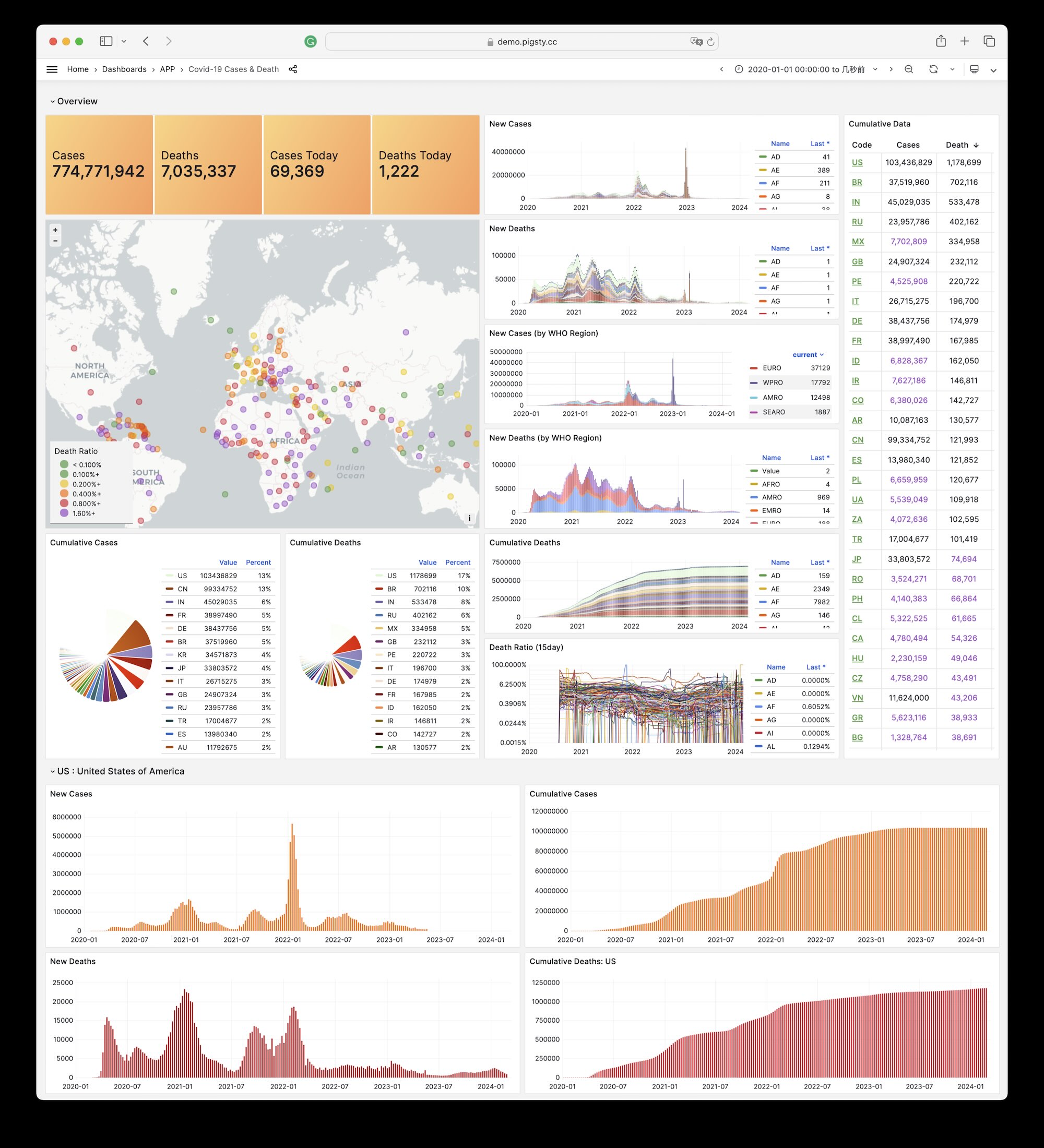
Installation
Enter the application directory on the admin node and execute make to complete the installation.
make # Complete all configuration
Other sub-tasks:
make reload     # download latest data and pour it again
make ui         # install grafana dashboards
make sql        # install database schemas
make download   # download latest data
make load       # load downloaded data into database
make reload     # download latest data and pour it into database
25 - StackOverflow Global Developer Survey
Analyze database-related data from StackOverflow’s global developer survey over the past seven years
Overview
GitHub Repository: https://github.com/Vonng/pigsty-app/tree/master/db
Online Demo: https://demo.pigsty.io/d/sf-survey
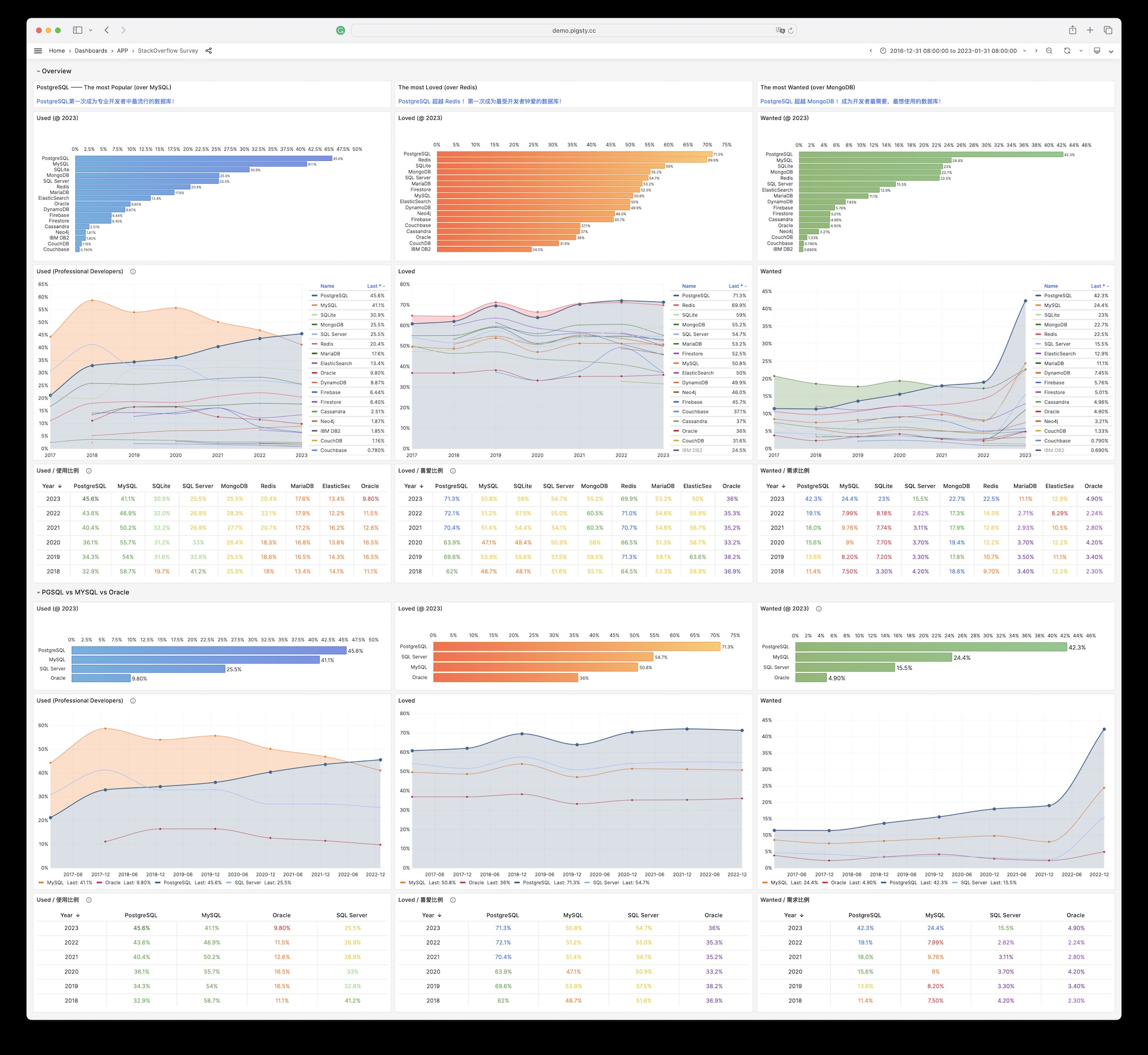
26 - DB-Engines Database Popularity Trend Analysis
Analyze database management systems on DB-Engines and browse their popularity evolution
Overview
GitHub Repository: https://github.com/Vonng/pigsty-app/tree/master/db
Online Demo: https://demo.pigsty.io/d/db-engine
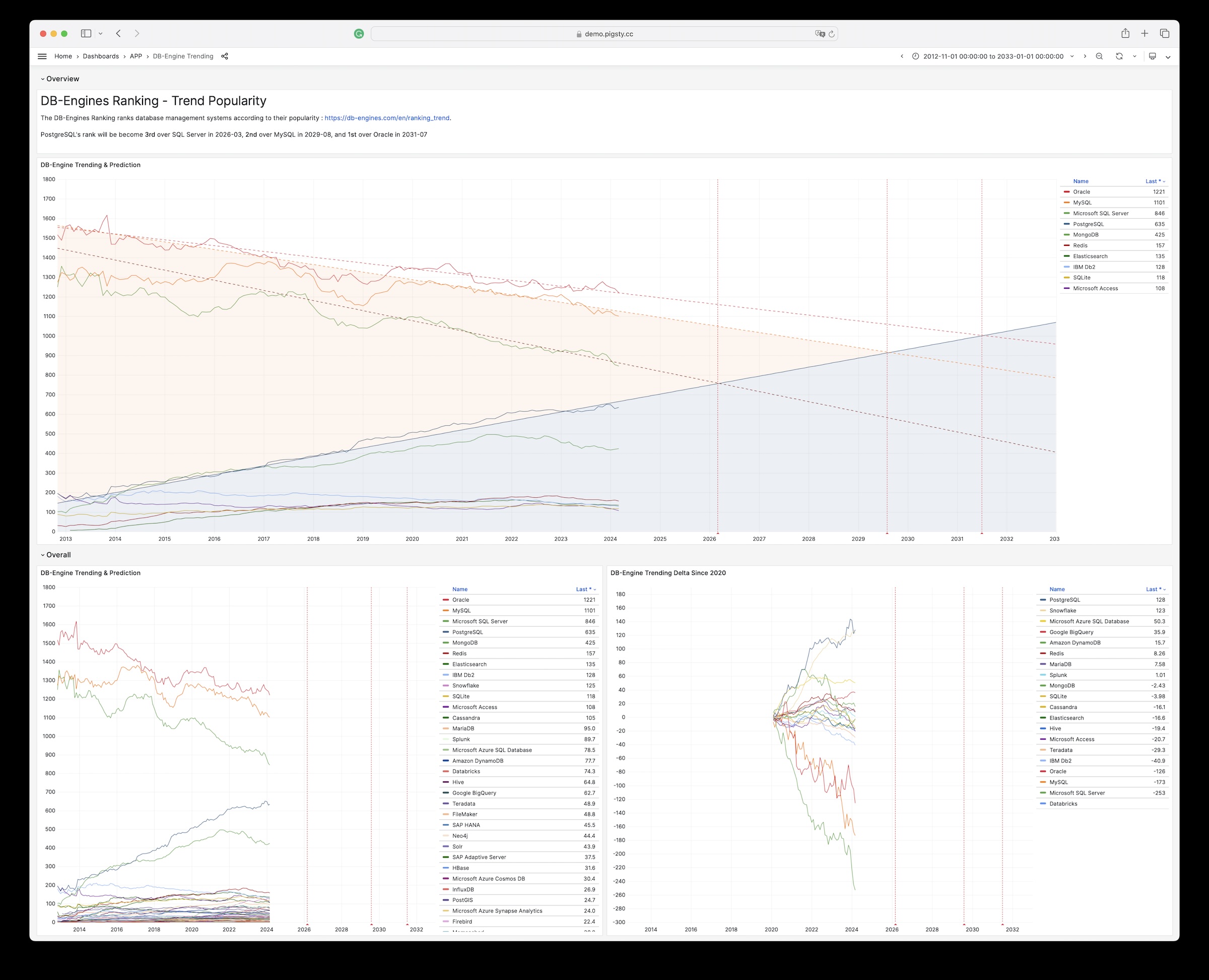
27 - AWS & Aliyun Server Pricing
Analyze compute and storage pricing on Aliyun / AWS (ECS/ESSD)
Overview
GitHub Repository: https://github.com/Vonng/pigsty-app/tree/master/cloud
Online Demo: https://demo.pigsty.io/d/ecs
Article: Analyzing Computing Costs: Has Aliyun Really Reduced Prices?
Data Source
Aliyun ECS pricing can be obtained as raw CSV data from Price Calculator - Pricing Details - Price Download.
Schema
Download Aliyun pricing details and import for analysis
CREATE EXTENSION file_fdw;
CREATE SERVER fs FOREIGN DATA WRAPPER file_fdw;

DROP FOREIGN TABLE IF EXISTS aliyun_ecs CASCADE;
CREATE FOREIGN TABLE aliyun_ecs
    (
        "region" text,
        "system" text,
        "network" text,
        "isIO" bool,
        "instanceId" text,
        "hourlyPrice" numeric,
        "weeklyPrice" numeric,
        "standard" numeric,
        "monthlyPrice" numeric,
        "yearlyPrice" numeric,
        "2yearPrice" numeric,
        "3yearPrice" numeric,
        "4yearPrice" numeric,
        "5yearPrice" numeric,
        "id" text,
        "instanceLabel" text,
        "familyId" text,
        "serverType" text,
        "cpu" text,
        "localStorage" text,
        "NvmeSupport" text,
        "InstanceFamilyLevel" text,
        "EniTrunkSupported" text,
        "InstancePpsRx" text,
        "GPUSpec" text,
        "CpuTurboFrequency" text,
        "InstancePpsTx" text,
        "InstanceTypeId" text,
        "GPUAmount" text,
        "InstanceTypeFamily" text,
        "SecondaryEniQueueNumber" text,
        "EniQuantity" text,
        "EniPrivateIpAddressQuantity" text,
        "DiskQuantity" text,
        "EniIpv6AddressQuantity" text,
        "InstanceCategory" text,
        "CpuArchitecture" text,
        "EriQuantity" text,
        "MemorySize" numeric,
        "EniTotalQuantity" numeric,
        "PhysicalProcessorModel" text,
        "InstanceBandwidthRx" numeric,
        "CpuCoreCount" numeric,
        "Generation" text,
        "CpuSpeedFrequency" numeric,
        "PrimaryEniQueueNumber" text,
        "LocalStorageCategory" text,
        "InstanceBandwidthTx" text,
        "TotalEniQueueQuantity" text
        ) SERVER fs OPTIONS ( filename '/tmp/aliyun-ecs.csv', format 'csv',header 'true');
Similarly for AWS EC2, you can download the price list from Vantage:
DROP FOREIGN TABLE IF EXISTS aws_ec2 CASCADE;
CREATE FOREIGN TABLE aws_ec2
    (
        "name" TEXT,
        "id" TEXT,
        "Memory" TEXT,
        "vCPUs" TEXT,
        "GPUs" TEXT,
        "ClockSpeed" TEXT,
        "InstanceStorage" TEXT,
        "NetworkPerformance" TEXT,
        "ondemand" TEXT,
        "reserve" TEXT,
        "spot" TEXT
        ) SERVER fs OPTIONS ( filename '/tmp/aws-ec2.csv', format 'csv',header 'true');


DROP VIEW IF EXISTS ecs;
CREATE VIEW ecs AS
SELECT "region"                                       AS region,
       "id"                                           AS id,
       "instanceLabel"                                AS name,
       "familyId"                                     AS family,
       "CpuCoreCount"                                 AS cpu,
       "MemorySize"                                   AS mem,
       round("5yearPrice" / "CpuCoreCount" / 60, 2)   AS ycm5, -- ¥ / (core·month)
       round("4yearPrice" / "CpuCoreCount" / 48, 2)   AS ycm4, -- ¥ / (core·month)
       round("3yearPrice" / "CpuCoreCount" / 36, 2)   AS ycm3, -- ¥ / (core·month)
       round("2yearPrice" / "CpuCoreCount" / 24, 2)   AS ycm2, -- ¥ / (core·month)
       round("yearlyPrice" / "CpuCoreCount" / 12, 2)  AS ycm1, -- ¥ / (core·month)
       round("standard" / "CpuCoreCount", 2)          AS ycmm, -- ¥ / (core·month)
       round("hourlyPrice" / "CpuCoreCount" * 720, 2) AS ycmh, -- ¥ / (core·month)
       "CpuSpeedFrequency"::NUMERIC                   AS freq,
       "CpuTurboFrequency"::NUMERIC                   AS freq_turbo,
       "Generation"                                   AS generation
FROM aliyun_ecs
WHERE system = 'linux';

DROP VIEW IF EXISTS ec2;
CREATE VIEW ec2 AS
SELECT id,
       name,
       split_part(id, '.', 1)                                                               as family,
       split_part(id, '.', 2)                                                               as spec,
       (regexp_match(split_part(id, '.', 1), '^[a-zA-Z]+(\d)[a-z0-9]*'))[1]                 as gen,
       regexp_substr("vCPUs", '^[0-9]+')::int                                               as cpu,
       regexp_substr("Memory", '^[0-9]+')::int                                              as mem,
       CASE spot
           WHEN 'unavailable' THEN NULL
           ELSE round((regexp_substr("spot", '([0-9]+.[0-9]+)')::NUMERIC * 7.2), 2) END     AS spot,
       CASE ondemand
           WHEN 'unavailable' THEN NULL
           ELSE round((regexp_substr("ondemand", '([0-9]+.[0-9]+)')::NUMERIC * 7.2), 2) END AS ondemand,
       CASE reserve
           WHEN 'unavailable' THEN NULL
           ELSE round((regexp_substr("reserve", '([0-9]+.[0-9]+)')::NUMERIC * 7.2), 2) END  AS reserve,
       "ClockSpeed"                                                                         AS freq
FROM aws_ec2;
Visualization


